How to Turn Webinar Recordings Into Searchable Notes and Accurate Subtitles
-

- August 01st, 2026
- 25 views

FREE SEO Topical Map Generator: Find Your Next Content Ideas
A webinar recording can contain an hour of useful explanations, questions, demonstrations, and audience feedback. The problem usually appears after the event ends.
Someone needs a quotation for an article. A colleague wants to review one technical explanation. The video editor needs subtitles. Another team member only wants a short summary of the decisions and next steps.
The recording contains all of this information, but finding it means moving through a long video timeline and listening repeatedly.
A better approach is to treat the recording as source material. First turn the spoken content into a searchable transcript, then use that reviewed transcript to create notes, chapters, quotations, and subtitles.
## Begin With the Final Video
Subtitle work should normally begin after the main video edit is complete.
Removing an introduction, shortening a pause, or moving a section changes the timing of everything that follows. If subtitles are created before these edits, later cues may appear too early or too late.
Before starting transcription, confirm that:
- The video uses the final sequence of scenes
- Long silent sections have been removed
- The correct audio track is present
- The recording does not include private discussion before or after the event
- The file plays correctly from beginning to end
Minor visual adjustments may still be possible later, but structural edits should be completed first.
## Check the Audio, Not Only the Picture
A visually clear webinar can still produce a difficult transcript when the speech track is poor.
Listen to a few sections from the beginning, middle, and end. Check whether the presenter remains at a consistent volume and whether questions from other participants are audible.
Common transcription problems include:
- A microphone placed too far from the speaker
- Background music continuing under speech
- Strong room echo
- Several people speaking at once
- Audience questions recorded at a much lower volume
- Screen-recording software capturing the wrong audio source
There is no need to make the audio sound like a studio production. The goal is simply to ensure that the spoken words are understandable.
## Choose the Language Carefully
Automatic language detection is useful when the recording clearly uses one language. However, manually selecting the main language can be safer for short videos, technical presentations, or recordings that begin with music.
Multilingual webinars need a little more thought.
A speaker may present in English while using product names, local expressions, or quotations from another language. In that case, select the main spoken language and review the foreign terms afterward.
If different sections use completely different languages, splitting the video into logical parts may produce a cleaner workflow than processing everything as one file.
## Prepare Names and Technical Terms
Product demonstrations and professional webinars often contain words that are difficult for general speech recognition systems.
Before processing the recording, make a short list of:
- Presenter and guest names
- Company names
- Product names
- Acronyms
- Industry terminology
- Locations
- Software features
- Unusual brand names
This list helps during review even when the transcription tool supports custom vocabulary.
Names and terminology should always be checked before the transcript is used for subtitles or publication. A misspelled brand name may appear many times across a long video, so correcting it early prevents repeated errors.
## Create a Searchable Transcript First
Do not begin by manually typing an SRT file.
A time-aligned transcript provides a much better starting point because it connects each section of text to the original video. You can search for a term, open the relevant segment, and replay only the few seconds that need confirmation.
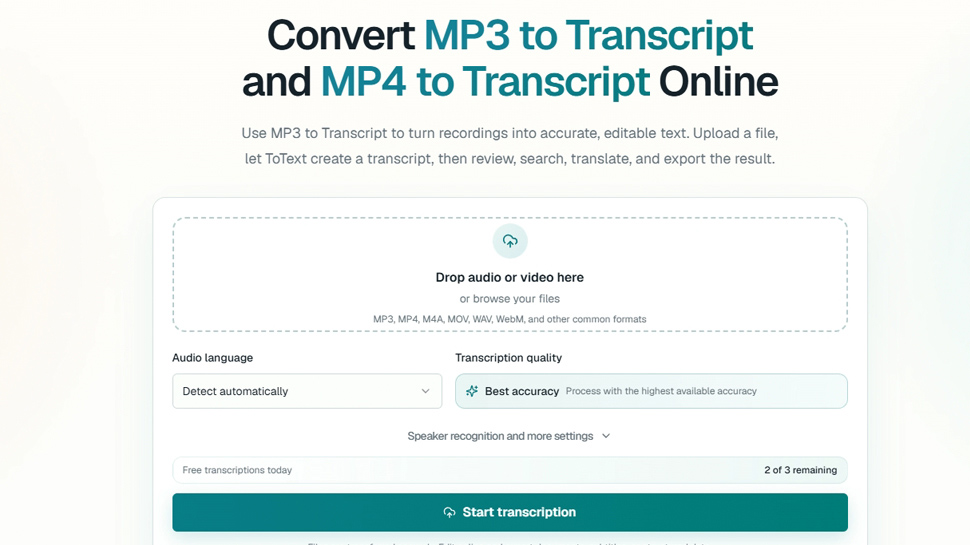
A browser-based workspace such as **To Text** keeps the transcript beside the uploaded recording. This makes it possible to correct wording, review timestamps, rename speakers, and search the full conversation without moving constantly between a media player and a separate document.
The transcript should still be treated as a first draft.
Clear speech may require only light editing. Specialist language, strong accents, background noise, and overlapping speakers usually need closer review.
## Review Meaning Before Subtitle Timing
It is tempting to start adjusting timestamps as soon as the transcript appears. Correct the wording first.
Prioritize information where a small error would matter:
- Names and job titles
- Dates and deadlines
- Prices and percentages
- Technical instructions
- Product terminology
- Direct quotations
- Website or contact details
Read each section in context. A sentence that looks grammatically unusual may reflect interrupted speech rather than a transcription error.
Once the wording is dependable, subtitle timing becomes easier because the final text is unlikely to change substantially.
## Keep Subtitle Cues Easy to Read
An accurate transcript is not automatically a good subtitle file.
Transcripts can contain long paragraphs because readers control their own pace. Subtitles appear for a limited time while viewers are also watching the video.
Good subtitle cues should:
- Follow natural phrases rather than breaking in the middle of an idea
- Remain on screen long enough to read
- Avoid displaying too much text at once
- Change close to the moment the words are spoken
- Use consistent punctuation
- Avoid covering important on-screen information
When a presenter speaks quickly, it may be necessary to shorten minor repetitions or divide one long segment into several cues.
The subtitle should preserve the meaning without forcing the viewer to choose between reading and watching.
## Check Speaker Changes
Many webinars include a host, presenter, guest, and audience questions.
Automatic speaker separation can help organize the transcript, but generic labels should be reviewed. Speaker 1 and Speaker 2 may be useful during processing, yet they provide little context in meeting notes or interview transcripts.
Rename speakers when the identity matters. For subtitles, adding a speaker name is most useful when the change would otherwise be confusing, such as during an off-camera question.
Overlapping speech remains difficult for both viewers and automated systems. In these sections, listen carefully and decide whether both statements are necessary for the final subtitle file.
## Export a Separate SRT File
An SRT file is a lightweight text file containing numbered subtitle cues, start and end timestamps, and the displayed text.
Using a dedicated **MP4 to SRT** workflow lets the creator review the transcript and timing before downloading the subtitle file. The resulting SRT remains separate from the MP4 video and can be imported into compatible platforms and editors.
A separate subtitle file has several advantages:
- Text can be corrected without rendering the video again
- Viewers can turn captions on or off
- Another language can use a separate subtitle track
- Search engines and platforms may process caption text
- The same video can have several subtitle versions
To Text creates the subtitle asset rather than permanently placing the words inside the video image. The reviewed SRT can then be uploaded to a supported video platform or imported into a compatible editor.
## Preview the Published Result
Never assume that a valid SRT file will look perfect everywhere.
After importing it, watch the complete video with captions enabled. Pay particular attention to:
- The first and final subtitle
- Fast sections
- Long pauses
- Speaker changes
- Slide transitions
- Demonstrations where text already appears on screen
- Sections edited after the subtitles were generated
Check the result on both a desktop screen and a smaller mobile display. A cue that looks comfortable on a wide monitor may occupy too much space on a phone.
When a problem appears, correct the transcript or timing and export a revised file. There should be no need to transcribe the entire recording again.
## Reuse the Transcript Beyond Subtitles
The reviewed transcript can support much more than captions.
A webinar can also become:
- A concise event summary
- A blog article
- Meeting or session notes
- A chapter list with timestamps
- Frequently asked questions
- Short quotations for social posts
- Internal training documentation
- Follow-up tasks for the team
This is why the transcript should be edited as a reliable source rather than discarded after the SRT download.
The video preserves the full presentation. The transcript makes the ideas inside it easier to find and reuse.
## A Repeatable Workflow
A simple webinar-to-subtitle process can look like this:
1. Finish the main video edit.
2. Confirm that the correct audio track is present.
3. Select the spoken language or use automatic detection.
4. Add important names and terminology.
5. Generate a timestamped transcript.
6. Correct the wording and speaker labels.
7. Review subtitle boundaries and reading speed.
8. Export the SRT file.
9. Import and preview it with the final video.
10. Reuse the reviewed transcript for notes, summaries, or articles.
To Text currently allows free accounts to process the first 20 minutes of up to three files each day without requiring a credit card. This makes it possible to test the transcript editor and subtitle workflow with a real recording before processing longer videos.
## Final Thoughts
Creating subtitles is not simply a matter of converting speech into words.
The useful work happens during review: confirming terminology, correcting names, deciding where cues should break, and making sure the timing follows the speaker naturally.
Starting with a searchable, editable transcript makes that process far more manageable.
The result is not only a better subtitle file. It is also a reliable written record that can continue supporting the webinar long after the original event has ended.