
AI Video Maker: Multiple Video Models on SuperMaker AI
-

- July 11th, 2026
- 30 views

FREE SEO Topical Map Generator: Find Your Next Content Ideas
Different video projects call for different things — sometimes speed matters more than polish, sometimes a specific visual style is the priority. Relying on a single AI model rarely covers every case, which is why access to several models in one place makes a real difference.
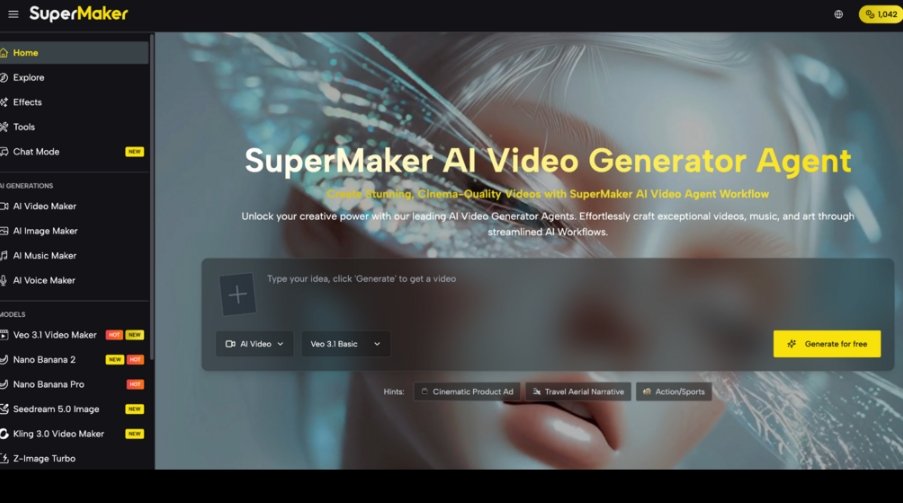
An AI Video Maker that offers a range of models lets you match the tool to the task, and SuperMaker AI is built around exactly that: multiple AI video models available within one platform. This guide covers what that model lineup looks like, how it fits into the platform, and how to choose between models for your own projects.
What Is Multi AI Video Models in One Platform?
Rather than locking creators into a single underlying model, SuperMaker AI gives access to several video generation models side by side, alongside image models used to support video projects. This means a text-to-video or image-to-video generation can be run through different models depending on what a specific scene calls for.
For creators working on varied projects, this removes the need to sign up for separate platforms just to access a different model. Whether the priority is speed, visual style, or trying out a newly released model, the choice happens within the same workflow rather than across multiple accounts.
Traditional Challenges of Working with a Single AI Model
Relying on just one AI video model tends to create a few recurring limitations:
No flexibility to switch models when a project calls for a different style or speed
Missing out on newly released models without signing up for another platform
Managing separate subscriptions just to access more than one video model
Re-learning a new interface every time a different model is needed
Inconsistent results when a single model isn't well suited to a specific type of scene
These limitations are a common reason creators look for platforms that bundle multiple models together. Being able to compare or switch models within the same project removes the friction of juggling separate tools, and makes it easier to pick the right fit for a given scene without starting over somewhere else.
How SuperMaker AI Handles Multiple Video Models
A Growing Lineup of Video Models
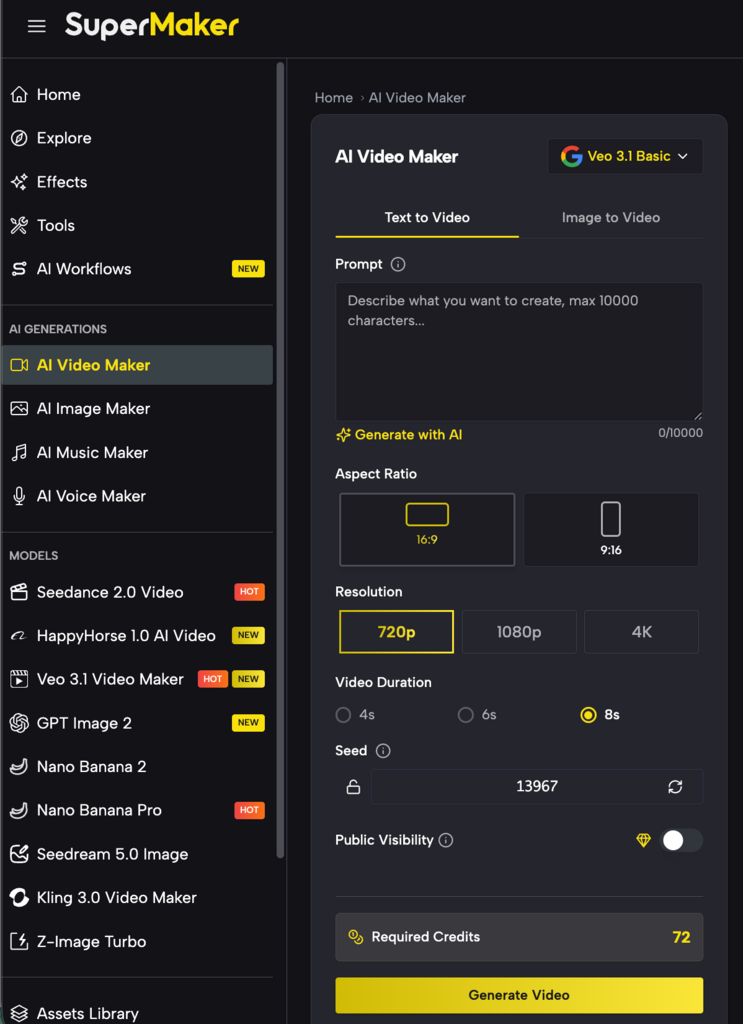
The platform's model lineup includes options such as Seedance 2.0, Veo 3.1, Kling 3.0, and HappyHorse 1.0, giving creators several video generation choices rather than a single fixed option. New models are added to the lineup as they become available, so the range of choices continues to expand over time.
Supporting Image Models for Video Projects
Alongside video models, SuperMaker AI also offers several image generation models, including Nano Banana Pro, GPT Image 2, and Seedream 5.0, which can be used to create or refine visuals that feed into image-to-video generation.
One Platform, Multiple Model Access
Instead of navigating separate sign-ups or interfaces for each model, all of these options are accessible from within the same AI Video Maker and Canvas Workflow Studio, so switching between models doesn't mean switching platforms.
Output & Usage – Ready for Real Content
Videos generated through any of the available models are exportable and suited to uses such as marketing content, social videos, and short-form storytelling. Commercial usage rights are generally included with paid subscription plans, while free-tier use is intended more for exploration, so it's worth reviewing your specific plan's terms before publishing commercial work.
How to Use It
Step 1 – Prepare Input
Start with your script, scene description, or reference image, and think about what matters most for this particular project — speed, a specific visual style, or trying a newer model that's just been added to the lineup.
Step 2 – Configure Settings
Select the model that best fits your project from the available options, adjusting settings like scene style and pacing as needed. This is a good place to compare a few of the AI video models available before committing to one for a longer or more detailed project.
Step 3 – Generate & Export
Generate your scene using the selected model, and preview the result before deciding whether to keep it or try a different model for comparison. Once you're satisfied, export the finished video for use in your project according to your plan's terms.
Use Cases for Creators
Brand and Campaign Marketers — testing a few different models to find the visual style that best matches a specific ad or campaign.
YouTube and Podcast Hosts — Choose faster models for quick-turnaround content and switch to others for more polished segments.
Indie Filmmakers — Compare models across scenes to find consistent style and quality for a longer narrative project.
Social Media Managers — Use newer models as they're added to keep short-form content fresh and varied.
FAQ
How does choosing between models actually work?
You select a model from the available lineup before generating a scene, and can switch to a different model for another attempt if the result isn't quite right. This all happens within the same video creation workflow.
Can I use videos made with any of these models commercially?
Commercial usage rights are generally included with paid subscription plans, regardless of which model was used to generate the video. It's worth checking your specific plan's terms before publishing commercial work.
Are new models added to the platform over time?
Yes. The model lineup is updated as new video and image models become available, so the range of options for a project can grow rather than staying fixed to whatever was offered originally.
Conclusion
Access to multiple AI video models within one platform means a project isn't limited by the strengths or limitations of a single model. That flexibility is part of the broader value of an AI Video Maker built to keep expanding its options rather than locking creators into one fixed tool.
If you've been limited to a single AI video model elsewhere, it's worth trying SuperMaker AI to compare a few different options within the same project.

![ShortBeast AI Review:Create Viral Videos Fast! [Bonus Inside]](https://indibloghub.in/public/images/courses/6898a5e5967019435_1754834405.png)
