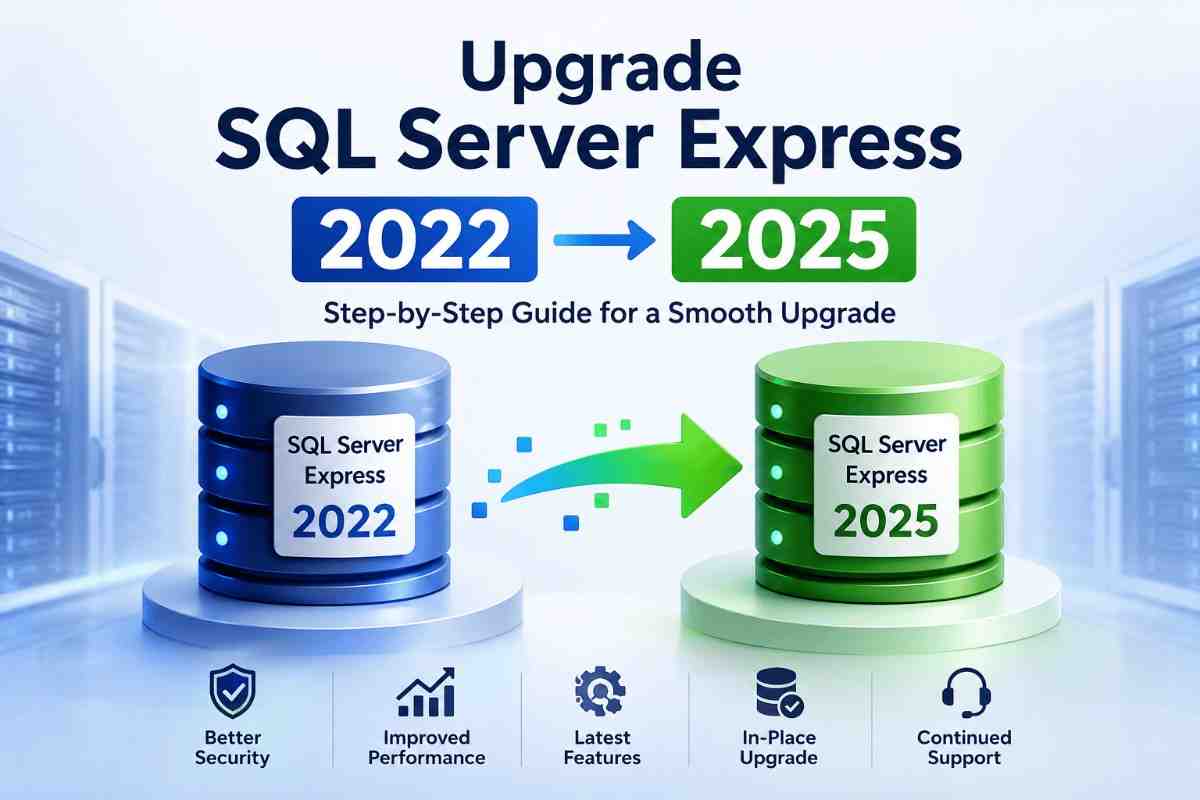
Upgrade SQL Server Express 2022 to 2025: Complete Step-by-Step Guide
-

- August 05th, 2026
- 30 views

FREE SEO Topical Map Generator: Find Your Next Content Ideas
Upgrading from SQL Server Express 2022 to SQL Server Express 2025 is one of the easiest ways to improve database security, compatibility, and performance while staying on Microsoft's free SQL Server edition. Whether you are running business applications, web applications, or development environments, upgrading ensures you can take advantage of the latest SQL Server engine improvements without changing your existing Express edition.
In this guide, you'll learn the supported upgrade path, prerequisites, step-by-step upgrade process, common errors, post-upgrade tasks, and the safest way to recover your databases if something goes wrong during the upgrade.
Why Upgrade SQL Server Express 2022 to 2025?
Every new SQL Server release includes enhancements that improve the overall database experience. SQL Server Express 2025 continues this trend by delivering better performance, stronger security, and improved compatibility with the latest Microsoft technologies. Upgrading also ensures that your applications continue to receive support and security updates while benefiting from the latest SQL Server engine improvements.
Some of the major benefits of upgrading include:
- Better database performance.
- Enhanced security features.
- Improved query processing.
- Latest compatibility updates.
- Better integration with modern applications.
- Continued Microsoft support.
- Improved reliability and stability.
What Happens if the Upgrade Requires Database Migration?
While an in-place upgrade is the preferred approach, there are situations where it may not be the best option. Compatibility issues, hardware upgrades, operating system changes, or the need to move to a new server often require administrators to migrate their SQL Server databases instead of upgrading the existing instance. Performing a manual migration can be time-consuming and increases the risk of downtime, configuration errors, or incomplete data transfers.
In such scenarios, SysTools SQL Server Migration Tool provides a reliable and efficient way to migrate SQL Server databases to a new server or SQL Server version. The software securely transfers database schema and data while maintaining object integrity, including tables, views, stored procedures, functions, indexes, triggers, keys, and constraints. It supports seamless migration between SQL Server instances, helping organizations minimize downtime and simplify the transition to a newer SQL Server environment.
Prerequisites Before Upgrading SQL Server Express 2022
Although the upgrade process is relatively simple, performing a few checks beforehand can prevent unexpected issues. Taking time to prepare your environment significantly reduces the chances of upgrade failures and database downtime.
Before starting the upgrade, make sure you:
- Verify your current SQL Server version.
- Check available disk space.
- Create complete database backups.
- Verify database integrity using DBCC CHECKDB.
- Stop applications connected to SQL Server.
- Ensure your Windows version supports SQL Server 2025.
- Keep administrative access to the server.
How to Upgrade SQL Server Express 2022 to 2025
The upgrade process is straightforward when all prerequisites have been completed. Follow the steps below to upgrade your SQL Server Express instance safely.
Step 1: Download SQL Server Express 2025: Visit the official Microsoft website and download the latest SQL Server Express 2025 installation package. Always use the latest available installer to ensure you receive all recent fixes and improvements.
Step 2: Run the SQL Server Setup: Launch the installer using Run as Administrator. This ensures the setup has sufficient permissions to modify SQL Server services, system files, and registry settings during the upgrade.
Step 3: Select the Upgrade Option: Once the SQL Server Installation Center opens, navigate to the Installation section and select Upgrade from a previous version of SQL Server. This option upgrades your existing SQL Server instance while preserving your databases and configuration.
Step 4: Choose the Existing SQL Server Instance: The installer automatically detects installed SQL Server instances. Select your SQL Server Express 2022 instance and proceed to the next step.
Step 5: Complete the Upgrade Wizard: Accept the license agreement, review the detected features, and continue through the setup wizard. SQL Server will automatically perform prerequisite checks before allowing the upgrade to begin.
Step 6: Start the Upgrade: Click the Upgrade button to begin the installation process. During this stage, SQL Server upgrades the database engine, system databases, shared components, and instance configuration. Avoid restarting the server or interrupting the installation until it completes successfully.
Step 7: Restart SQL Server Services: After the installation finishes, restart the SQL Server services if required. In some cases, Windows may also recommend restarting the system to complete the installation.
Step 8: Verify the Upgrade: Open SQL Server Management Studio and verify that the instance is now running SQL Server 2025. You should also confirm that all databases are online and accessible before allowing users back into the system.
Common Issues During SQL Server Express Upgrade
Although SQL Server upgrades are generally reliable, administrators occasionally encounter issues caused by environmental problems, existing database corruption, or missing prerequisites. Understanding these common problems helps you troubleshoot them more efficiently.
- Pending Restart Error: This occurs when Windows requires a restart before SQL Server setup can continue. Restart the server and rerun the installation.
- Setup Rule Failure: The installer may detect unsupported operating systems, insufficient permissions, or missing Windows updates. Resolve the reported issues before restarting the upgrade.
- Database Recovery Pending:Sometimes existing database files become inaccessible after the upgrade because of storage problems or prior corruption. Restoring from a healthy backup is usually the safest solution.
- Database in Suspect Mode: If SQL Server detects corruption while bringing databases online, they may enter Suspect mode. Database recovery becomes necessary before the database can be accessed again.
- Upgrade Interrupted: Unexpected power failures or forced system shutdowns during installation can leave the SQL Server instance partially upgraded. In such cases, restoring from backups or rerunning the installation may be required.
Best Practices for a Successful SQL Server Upgrade
Following industry best practices can help ensure a smooth upgrade while minimizing the risk of database corruption or unexpected downtime.
- Create verified database backups.
- Test the upgrade in a non-production environment.
- Check database integrity before upgrading.
- Disconnect active users during installation.
- Ensure sufficient free disk space.
- Keep SQL Server installation media available.
- Verify databases immediately after upgrading.
- Monitor server performance for several days.
- Update SQL Server Management Studio.
- Document all upgrade activities.
Conclusion
Upgrading SQL Server Express 2022 to SQL Server Express 2025 is a straightforward process that provides better performance, stronger security, improved compatibility, and continued Microsoft support. With proper planning, database backups, and pre-upgrade validation, most organizations can complete the upgrade with minimal downtime and without affecting their existing databases.
However, database corruption or unexpected failures can still occur during the upgrade process. Combining regular backups with a trusted migration solution ensures your SQL Server environment remains protected before, during, and after every upgrade.