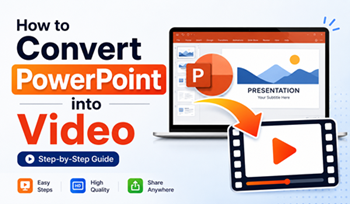
How to Convert PowerPoint into Video
-
- July 08th, 2026
- 50 views

FREE SEO Topical Map Generator: Find Your Next Content Ideas
Creating a video from a PowerPoint presentation is one of the easiest ways to share your content with a wider audience. Whether you're a teacher, marketer, trainer, business professional, or student, converting your PowerPoint into a video allows people to watch your presentation without installing Microsoft PowerPoint.
A PowerPoint video can be uploaded to YouTube, shared on social media, embedded on websites, or sent through email. It also preserves animations, transitions, narrations, and timings, making your presentation more engaging.
In this guide, you'll learn how to convert PowerPoint into video using Microsoft PowerPoint and discover a faster alternative for creating presentation videos with AI.
Why Convert PowerPoint into Video?
Here are some common reasons why users convert PowerPoint presentations into videos:
Share presentations with anyone without requiring PowerPoint.
Upload presentations to YouTube, Vimeo, or social media platforms.
Preserve animations, slide transitions, and narration.
Create online training materials and tutorials.
Deliver presentations remotely.
Improve accessibility for viewers on mobile devices.
Method 1: Convert PowerPoint into Video Using Microsoft PowerPoint
Microsoft PowerPoint includes a built-in feature that exports presentations as videos.
Step 1: Open Your Presentation
Launch Microsoft PowerPoint and open the presentation you want to convert.
Step 2: Complete Your Presentation
Before exporting:
Review all slides.
Check animations and transitions.
Add speaker notes if required.
Record narration if you want voice-over.
Step 3: Go to Export
Click:
File → Export → Create a Video
You'll see several export options.
Step 4: Choose Video Quality
PowerPoint offers different video resolutions.
Ultra HD (4K)
Full HD (1080p)
HD (720p)
Standard (480p)
For most users, Full HD provides an excellent balance between quality and file size.
Step 5: Select Timings
Choose one of these options:
Use Recorded Timings and Narrations
Don't Use Recorded Timings and Narrations
If you haven't recorded timings, PowerPoint lets you specify how many seconds each slide should appear.
Step 6: Create the Video
Click Create Video.
Choose:
File name
Save location
Video format (MP4 or WMV)
PowerPoint will begin rendering your presentation into a video.
The export time depends on:
Number of slides
Animations
Audio recordings
Video quality
Method 2: Convert PowerPoint into Video with AI
If you want a more professional-looking video without manually recording narration, AI tools can help.
Modern AI presentation platforms can automatically:
Add realistic AI voiceovers
Generate subtitles
Improve slide visuals
Create presenter-style videos
Produce ready-to-share videos in minutes
These tools are especially useful for:
Sales presentations
Online courses
Business demos
Product launches
Educational videos
How to Convert PowerPoint into Video Online
Many online tools allow you to upload a PPT or PPTX file and export it as a video.
The general process is simple:
Upload your PowerPoint presentation.
Customize animations or voiceovers.
Add background music if needed.
Select video resolution.
Export and download the video.
This method works well if you don't have Microsoft PowerPoint installed.
Convert PowerPoint into Video Using MagicSlides AI
If you want to create engaging presentation videos with minimal effort, MagicSlides AI PPT to MP4 Converter offers a simple solution.
With MagicSlides AI, you can:
Upload your PowerPoint presentation.
Generate AI-powered narration.
Add subtitles automatically.
Create professional presentation videos.
Export videos suitable for YouTube, online courses, and business presentations.
It significantly reduces the time required to create high-quality presentation videos compared to manual editing.
Tips for Creating Better PowerPoint Videos
Before exporting your presentation, keep these best practices in mind:
Use large, readable fonts.
Keep slide text concise.
Use consistent colors.
Avoid overcrowded slides.
Add smooth transitions.
Include high-quality images.
Record clear narration.
Keep each slide focused on one idea.
These improvements make your final video more engaging and easier to follow.
Common Problems While Converting PowerPoint into Video
Video Export Is Slow
Large presentations with animations and audio take longer to render.
Solution:
Close unnecessary applications.
Save the presentation locally.
Export in Full HD instead of 4K.
Audio Is Missing
Sometimes narration doesn't appear in the final video.
Solution:
Ensure narration is embedded.
Use "Recorded Timings and Narrations."
Preview the presentation before exporting.
Animations Don't Work Properly
Unsupported effects may not render correctly.
Solution:
Use standard PowerPoint animations and preview the slideshow before exporting.
Large Video File Size
High-resolution videos create larger files.
Solution:
Export in 1080p instead of 4K or compress the video afterward.
Benefits of Converting PowerPoint into Video
Converting presentations into videos offers several advantages:
Easy to share online
Compatible with most devices
Preserves slide animations
Ideal for online learning
Professional presentation delivery
Better audience engagement
No PowerPoint installation required for viewers
Frequently Asked Questions
Can I convert PowerPoint into MP4?
Yes. Microsoft PowerPoint allows you to export presentations directly as MP4 videos.
Does PowerPoint keep animations in the video?
Yes. Most animations, transitions, and recorded narrations are preserved during video export.
Can I add voice narration before converting?
Yes. PowerPoint allows you to record narration for each slide before exporting the presentation as a video.
Can I convert PowerPoint into video online?
Yes. Several online presentation tools allow you to upload PPT or PPTX files and export them as videos without installing software.
Which video quality should I choose?
For YouTube, business presentations, and online courses, Full HD (1080p) is generally the best choice because it offers excellent quality with a manageable file size.
Conclusion
Converting PowerPoint into video is a simple way to make your presentations more accessible and engaging. Microsoft PowerPoint includes a built-in export feature that preserves animations, transitions, and narration, making it suitable for most users.
If you're looking for a faster workflow with AI-powered narration, subtitles, and enhanced visuals, MagicSlides AI provides an efficient alternative for turning PowerPoint presentations into professional-quality videos in just a few steps.