Thunderbird inbox disappeared after Repair Folder
-

- July 07th, 2026
- 36 views

FREE SEO Topical Map Generator: Find Your Next Content Ideas
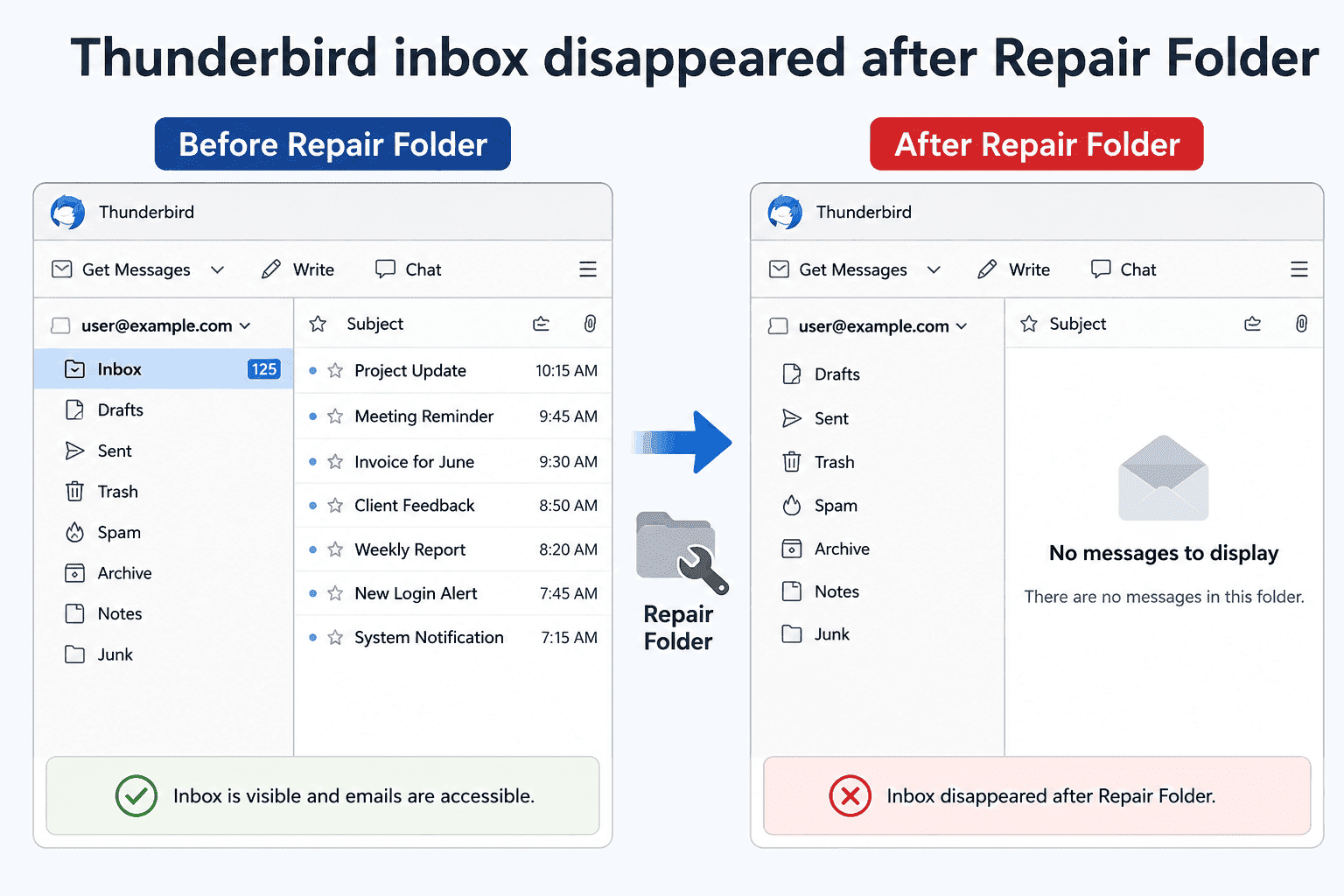
Is your Thunderbird inbox disappeared after repair folder, and you are looking for quick solution to fix this issue to check inbox & other folder missing emails, to increase folder speed, or to turn off unread count & message count.
Whether you are an office employee, business owner, IT admin, or freelancer. You also face challenges when your Thunderbird folder takes time to open, Thunderbird starts showing duplicate emails, or your new emails are not showing after completion of sync. As a senior researcher, sharing two practically applied techniques for Thunderbird inbox messages disappeared after repair folder, that is manual and an automatic solution.
Let’s start this article, but before moving towards techniques, first have a look at major causes of this issue below.
Reasons Thunderbird Inbox Disappeared after Repair Folder
- Corrupted mailbox index (MSF file): Folder index becomes corrupted, causing emails to disappear from view.
- Damaged MBOX file: When actual mailbox file has been damaged, repair folder cannot display emails correctly.
- Interrupted repair process: A system crashes, power outage, or directly closing Thunderbird in between repair process of mailbox.
- IMAP server: Server sync problems can temporarily hide & will fail to load Inbox emails.
- Logging from another device: Accessing same email account from another device triggers sync conflicts, making emails temporarily missing.
- Storage errors: Insufficient disk space will also affect Thunderbird's mailbox files & folder structure.
- Antivirus interference: Security software locks, scans, & quarantines Thunderbird mailbox files.
- Corrupted Profile: A damaged user profile will also prevent folders from loading properly.
These were the major reasons due to which these issues will arise. However, we are assuming you might get cleared all about Thunderbird inbox not showing after repair folder. Moving on to upcoming sections to learn techniques to fix this issue.
Manual Method to Fix Thunderbird Repaired Inbox Not Working Issue
In this section, we are using Mozilla Thunderbird to solve Thunderbird inbox mail not showing issue after repair. So, follow steps listed below carefully to do it yourself for free.
- Open Mozilla Thunderbird application on your Windows or Mac OS.
- After that, select Inbox folder and right-click on it.
- Then, choose “Properties” option and click on Repair Folder button.
- Finally, click on OK button to complete this process.
- Done! Now restart your Mozilla Thunderbird application & check, it starts working normally.
Limitations of Manual Method
- Its repair folder option rebuilds folder's index file but does not repair corrupted email data.
- While using this method, users need to repair each affected folder individually, such as Inbox, Sent, or Drafts.
- This method becomes not useful when Thunderbird profiles are damaged, as this does not resolve issue completely.
- Repairing a folder cannot restore emails that have been permanently deleted.
- If MBOX file is corrupted permanently, then this method does not give effective results.
- This method only works on Mozilla Thunderbird. If users do not start application, then they cannot access Repair Folder option.
- If problems are caused by incompatible extensions, antivirus, & operating system, then these issues will remain unresolved.
These were the loopholes that you should know before using this manual approach.
Automatic Solution to Solve Thunderbird Inbox Disappeared Folder
So, to quickly solve this Mozilla Thunderbird inbox mail disappeared folder after repair issue, you can try BitRecover MBOX converter. This tool allows you to securely convert your problematic MBOX file into various file formats while maintaining complete data integrity, without affecting original email data of your Thunderbird mailbox.
Steps of Automatic Solution
- Open suggested application on your Windows or MacOS and click next.
- Choose between Select Files or Select Folder option to import Thunderbird MBOX file into it.
- Next, select folders of your Thunderbird MBOX file & click on Next.
- Now, choose saving option Thunderbird and set destination path.
- Finally, click on Convert button to start repairing process.
- Done, after this process, your Thunderbird will start working normally.
Benefits of Automatic Solution
- This tool provides flexibility to convert MBOX files into PST, EML, MSG, PDF, & 28 more.
- While using this tool users can convert bulk MBOX file at once, will save their time & efforts.
- This tool preserves complete email data intact throughout entire conversion process without affecting email formatting, such as attachments, headers, metadata, & inline images.
- It’s advanced email filters option allows users to make selectively conversion from specific areas such as date range, sender, recipient, & subject.
- This tool is compatible with all types of MBOX files created by multiple email clients, such as Thunderbird, Apple Mail, Google Takeout, Eudora, & others.
Final Thoughts
At the end of this blog on topic “How to fix Thunderbird inbox disappeared after Repair Folder” issue. We have shared major reasons which is why this problem occurs. Additionally, we shared two tested techniques to solve this issue completely without affecting original data. Found that using manual approach users might face some uncertain challenges which is not helpful for non-technical users. On the other hand, using automated solution is more reliable option over manual method.