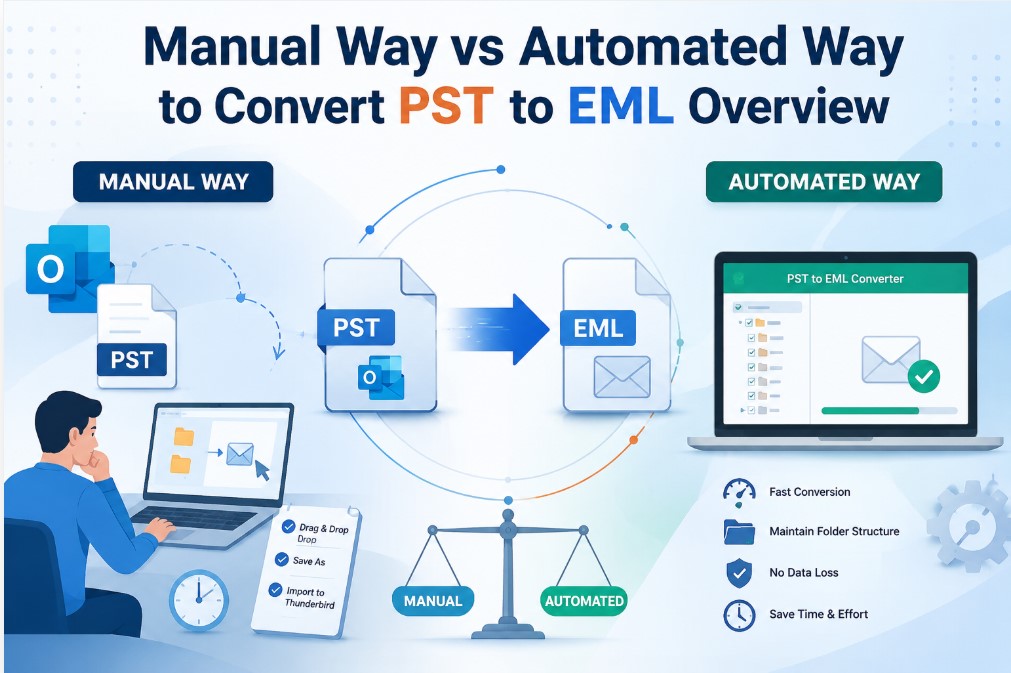
Manual Way vs Automated Way to Convert PST to EML Overview
-

- July 28th, 2026
- 12 views

FREE SEO Topical Map Generator: Find Your Next Content Ideas
The problem with email archive management can arise when users want to switch from Outlook to another email client that supports the EML format. Outlook stores mailbox data in PST files, which are often only accessible in Outlook itself, making migration difficult. This blog discusses different ways to convert PST files to EML, compares manual and automated methods, lists best practices for successful conversion and helps users to choose the best method as per their need.
What is PST and EML File Format
PST (Personal Storage Table) is a proprietary file format created by Microsoft to store Outlook mailbox data including emails, contacts, calendars, notes, tasks and attachments. It is widely used for email archiving and backup.
EML is a single email file format that many email clients support, including Windows Mail, Thunderbird, Apple Mail, eM Client and others. An EML file contains one email message with its metadata and attachments, which makes it very portable across platforms.
PST to EML conversion allows users to open Outlook emails in other applications without the need for Microsoft Outlook.
The importance of conversion
There are several reasons why organizations and individual users may need to convert PST files to EML:
- Move from Outlook to another email client.
- Improved compatibility with multiple operating systems.
- Easily sharing individual email messages.
- Long-term email archiving in a universal format.
- Streamlined forensic investigations and legal documentation.
- Improved flexibility for backup and restoration.
Various Ways to Convert PST to EML
Manual Method 1: Drag and Drop Outlook Emails
It is one of the easiest ways to export Outlook emails into EML files.
Process
- Open Microsoft Outlook.
- Now create a folder on your computer.
- Select one or more emails in Outlook.
- Move the selected emails to the target folder.
- If the Outlook version and Windows environment support it, Outlook saves the emails in EML format.
Benefits
- Free of charge.
- Easy to do for a small amount of email
- No extra software needed.
Limitations
- Good only for limited email migration.
- Folder hierarchy not preserved.
- Time consuming for large mailboxes
- Requires Microsoft Outlook to be installed.
- Not good for bulk conversion.
Method 2: Manually save emails one by one
Users can save Outlook emails individually and convert them to the EML supported formats with the help of compatible email applications.
Process
- Open Microsoft Outlook.
- Pick the email you want.
- Select File > Save As.
- Store the email as MSG or HTML.
- Open or import the saved file in an email client that supports EML.
Benefits
- Useful for exporting specific emails.
- No third-party software required.
- Useful for saving important messages separately.
Limitations
- PST files cannot be processed fully.
- Repetitive manual work required.
- Attachments or metadata might require additional validation.
- Not effective for business environments.
Method 3: Manual Import of PST to Thunderbird with Outlook
Another widely used way is importing Outlook emails to Mozilla Thunderbird with Outlook synchronization or intermediate migration methods.
Process
- Install Microsoft Outlook.
- Configure your Outlook account.
- Install Mozilla Thunderbird.
- Import Outlook mailbox data in Thunderbird.
- Thunderbird folders open
- Save individual emails as EML files.
Benefits
- Helps you switch to an open-source email client.
- Retains most of the email properties.
- Best for users already using Thunderbird.
Limitations
- Several applications must be installed.
- Setting up can be tricky.
- Requires technical expertise
- Bulk export is still very time intensive.
Tool-Based Approach
An automated solution is more feasible approach where users need to export large Outlook mailboxes efficiently. GainTools PST to EML Converter lets users convert the whole PST file or selected folders into EML format keeping mailbox structure, email properties and attachments intact.
Steps
- Download and run the software.
- Browse and add PST file.
- Preview mailbox folders and mail items.
- Select required folders or whole mailbox.
- Select EML as the output format.
- Choose the destination location.
- Initiate the conversion process.
Benefits
- Converts complete PST mailboxes in one go.
- Enables selective conversion of folders.
- Maintains folder structure and email format.
- Keeps attachments, metadata and email properties.
- Manages large PST files without splitting
- Supported Outlook PST file from versions 2003, 2007, 2010, 2013 and 2016.
- Saves a lot of time for bulk migrations.
Limitations
- Requires software to be installed.
- Advanced features may require a licensed version.
Manual vs. Automated
|
Feature |
Manual Methods |
Automated Method |
|
Cost |
$0.00 |
Commercial software |
|
Bulk Conversion |
Limited |
Yes |
|
Speed |
Slow |
Quick |
|
Technical Skills |
Moderate |
None |
|
Folder Hierarchy |
Typically not maintained |
Maintained |
|
Email Metadata |
May vary |
Yes |
|
Attachments |
May need verification |
Preserved |
|
Large PST Support |
Difficult |
Yes |
|
Selective Conversion Availability |
Limited |
Yes |
|
Data Accuracy |
Low |
High |
Best Practices for Successful Conversion
There are some best practices that can help increase the accuracy of conversions and reduce the chances of data loss.
- Back up the original PST file before starting.
- Ensure that the health of PST file is good to avoid corruption issues
- Close Outlook to prevent conflicts with file access during conversion.
- Ensure that you have enough disk space to store the exported EML files.
- Check the migrated mail in the destination email client.
- Migrate a small sample first, then migrate large mailboxes
- Maintain the same folder structure to make it easier to manage your emails.
- After the conversion, check the attachments and e-mail headers.
Such practices help to make sure the emails have been converted completely and are accessible.
FAQs
1. Reasons to Convert PST Files to EML
Many email clients support EML files, making it easy to access, migrate, archive and share email data across different platforms.
2. Can I convert selective folders of a PST?
Yes. Most of the automated utilities give the facility to export selective folders rather than the complete mailbox that saves the processing time.
3. Will attachments carry through the conversion?
Most professional converters will keep headers and metadata through the conversion process as well as formatting and attachments.
4. Does manual conversion rely on Microsoft Outlook?
Yes. Most of the manual methods require Microsoft Outlook to open and export PST mailbox data.
5. Can I convert PST files safely?
Large PST files can be successfully converted with data integrity maintained with reliable automated solutions designed to handle large mailboxes.
6. Is there any risk of email data being lost during the conversion?
If you follow the proper backup procedures and choose an appropriate conversion method, data loss is rare. Always review the output after conversion.
Conclusion
The conversion method that you choose will depend on the size of the mailbox, the amount of time that you have, your technical skills, and the level of accuracy that you require. Exporting a couple of emails manually is ok but it’s time consuming and operationally not good for large mailboxes. Automation can accelerate the processing, improve the accuracy and keep the structure and meta data of the e-mail. GainTools PST to EML Converter is a helpful solution for organizations and professionals who deal with a large amount of Outlook data and want to handle complex mailbox conversion with less human effort.