A Complete Guide to Recovering Corrupt Outlook PST Files Without Data Loss
-

- July 31st, 2026
- 30 views

FREE SEO Topical Map Generator: Find Your Next Content Ideas
Introduction
Mailbox files that are corrupted or damaged can significantly reduce your productivity when using desktop email clients. In this blog we will discuss how to select the right recovery method for corrupted or unreadable Outlook storage files and identify it. The guide provides an overview of basic file formats, manual workarounds, automated software solutions, performance comparison metrics, key data protection best practices and which audience segments benefit most from these recovery strategies.
File Formats Introduction
Microsoft Outlook is used in a local desktop environment that uses structured database files to store the important communication records such as e-mail messages, calendar schedules, contacts, tasks and notes. When unexpected application failures or system crashes happen, it is important to understand how data is being processed and these low-level file architectures need to be understood.
PST (Personal Storage Table) is a Microsoft Outlook data file format used to store and manage mailbox information locally on a computer. It contains various Outlook items, including emails, attachments, contacts, calendars, tasks, notes, and other mailbox data.
Importance of PST Recovery
Data Access Recovery: If the PST file is damaged because of header corruption or an unexpected application crash, the data stored in the PST file becomes inaccessible through normal email interfaces. Repairing the file will restore full access to the important communication information such as e-mail, calendar, contacts, tasks and notes.
Avoid Irrecoverable Loss of If a damaged database is not repaired and data extracted promptly, important operational records and irreplaceable historical correspondence stored in it could be lost forever.
Ensuring Compliance and Archiving: Recovering compromised databases ensures that important communication records are properly maintained for long term archiving, regulatory compliance audits and future system migrations.
Business Continuity: Small business and independent operators can restore workflows and historical client communications smoothly after workstation failures or unexpected server migrations, by having a broken local backup file to recover.
Manual Methods
Manual recovery is performed with the help of native Outlook features, inbuilt utilities or profile configurations only and does not require any third-party software.
Method 1: Link the Original Account
Process: Recreate the original email profile or connect to a live Exchange or IMAP server environment to start a new synchronization of mailbox data and then export the synchronized records into a standard archive file.
Advantages: It uses the features of the native application, does not require any external applications and is absolutely free of charge.
Limitations: This method will not work if the original server account is permanently deleted or the underlying storage database is structurally corrupt.
Method 2: Use Import and Export Wizard Built-in
Process: Open the File menu in Outlook, click on Open & Export options, tap on Export to File utility, select specific mailbox folders to save locally as PST file.
Advantages: Well-organized folder structure in stable operational environments, and good with healthy and active user profiles.
Limitations: Not applicable to severely damaged files if the parent profile is not on the local system. It is also often slow and tends to hang when processing large amounts of data.
Method 3: Drag and Drop Archive Manually
Process: Drag folders or groups of messages from the damaged mailbox hierarchy to a new archive structure which you have manually created as a blank local archive file in the Outlook navigation pane.
Advantages: Allows for granular control on a small scale over specific folder selections.
Limitations: Highly vulnerable to human error, time-consuming and usually freezes or crashes when trying to process corrupted directory trees.
Tool-Based Method
If the PST is heavily corrupted and Outlook profiles are lost or mailbox data cannot be accessed, manual recovery methods will not work and a more structured approach with specialized PST recovery solution is recommended. Recovery software does not rely on an active Outlook profile or a healthy mailbox environment. Instead, it directly analyses the damaged PST file residing on the local system.
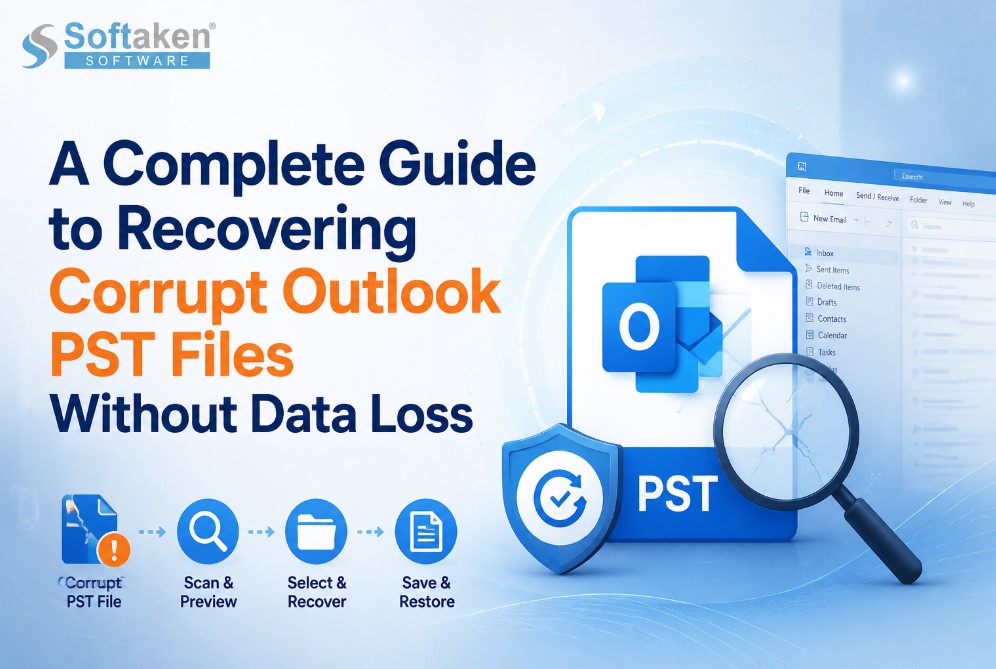
The recovery process generally starts with a scan of the corrupt PST file to find the recoverable parts of the mailbox. The software scans the internal file structure and then gives users a preview of available emails, attachments, contacts, calendars and other mailbox items before starting the recovery process.
Advantages of Using a Recovery Tool
Direct PST File Analysis: The software can analyze the PST file directly, without needing to access the original Outlook profile or email account.
PST File Recovery from Damaged Files It recovers the available mailbox items from the corrupt PST file, unexpected shutdown and file errors.
Selective Data Recovery: Users can view the mailbox content and recover required folders/items only instead of processing the complete file.
Preserves Mailbox Structure: Critical folder structures and email-related information are preserved during recovery for rapid access.
Saves you time and effort: Software-driven scanning and recovery workflows eliminates the need to manually export individual emails or rebuild mailbox structures.
Limitations
PST recovery tools are a great way to recover data but they do have their requirements. Users will need to install the software on a compatible Windows system and processing very large PST files may require adequate storage space and system resources. Also, the recovery outcome may depend on the PST corruption level and the state of the original file.
For users with critically damaged Outlook data files, dedicated recovery tools such as Softaken Outlook PST Repair can make the recovery process easier by reducing reliance on the original Outlook setup and offering a systematic approach to recovering accessible mailbox data.
Comparison
|
Evaluation Metric |
Manual Methods |
Tool Based Approach |
|
Orphaned File Support |
Low (Requires active profile link) |
High (Reads the file directly from disk) |
|
Speed of processing |
Very slow with large archives |
Maximizing Bulk Efficiency |
|
Error Rate |
High (Prone to freeze or leave out items) |
Low (Structured automated export) |
|
Resource Overhead |
Low |
Moderate to High (Scale with file size) |
Best Practices
Proper preparation is required for email recovery projects to ensure data integrity and maximize processing performance:
Check free space on disk: The destination drive must have at least twice the free space of the source file size to allow for temporary processing logs and final output files.
Source Files Isolation: Before moving forward with the extraction steps, move the target database to a secure directory on your local machine to protect the original source from accidental overwrites.
Preview Functions: Preview the scanned mailbox items always in preview mode, to verify the data legibility and export only the required directories.
Disable Background Applications: Close all memory-hogging background applications on your desktop to free up maximum system memory and processor power to large-scale conversions.
Ideal Users
This structured approach to recovery can be useful for many professionals and sectors working with archives of digital communication:
IT Support Teams: System administrators responsible for enterprise user offboarding, hardware retirement, and historical database consolidation.
Legal and Compliance Departments: Professionals who require quick, reliable access to past employee communications for internal audits and investigative discovery.
Independent Small Business Operators: Local backup restore providers for unexpected workstation hardware failures or server migrations.
Frequently Asked Questions
Is there a way to get the data back if the entire Outlook profile is deleted?
Yes, the automated utility methods read local offline files directly, with no active email profile or server connection required.
Do I need to install Outlook to run a recovery tool?
Most third-party file repair applications are standalone, but system requirements should always be checked before implementation.
How to avoid data loss at manual extraction?
Before you run native export wizards or drag and drop, back up your raw database files to a separate directory or external drive.
Reasons why manual methods are not good for large archives?
Big files with corrupted header blocks cause native wizards to use active synchronization threads that often time out or crash.
How do I recover corrupted calendar items and attachments?
There are special utilities designed to extract structural metadata. They manage to preserve standard messages, attachments and calendar entries.
What are the formats to save the recovered data?
The users can export the recovered mailbox items in various flexible formats like PST, MBOX, EML and EMLX using advanced recovery tools.
Conclusions
The level of damage, the size of the file and the existence of the original Outlook environment determine the best way to recover a corrupted Outlook PST file. Manual methods work for small issues or healthy PST files but are often ineffective for severe corruption, large mailbox archives or unavailable data files.
For organizations, IT professionals and users who have important email archives, using a reliable recovery utility can help improve data accessibility and help preserve emails for the long term. Softaken Outlook PST Repair is a systematic approach to restore accessible data of outlook mailbox. It has a systematic recovery workflow, a user-friendly interface and the ability to handle difficult PST-related issues.