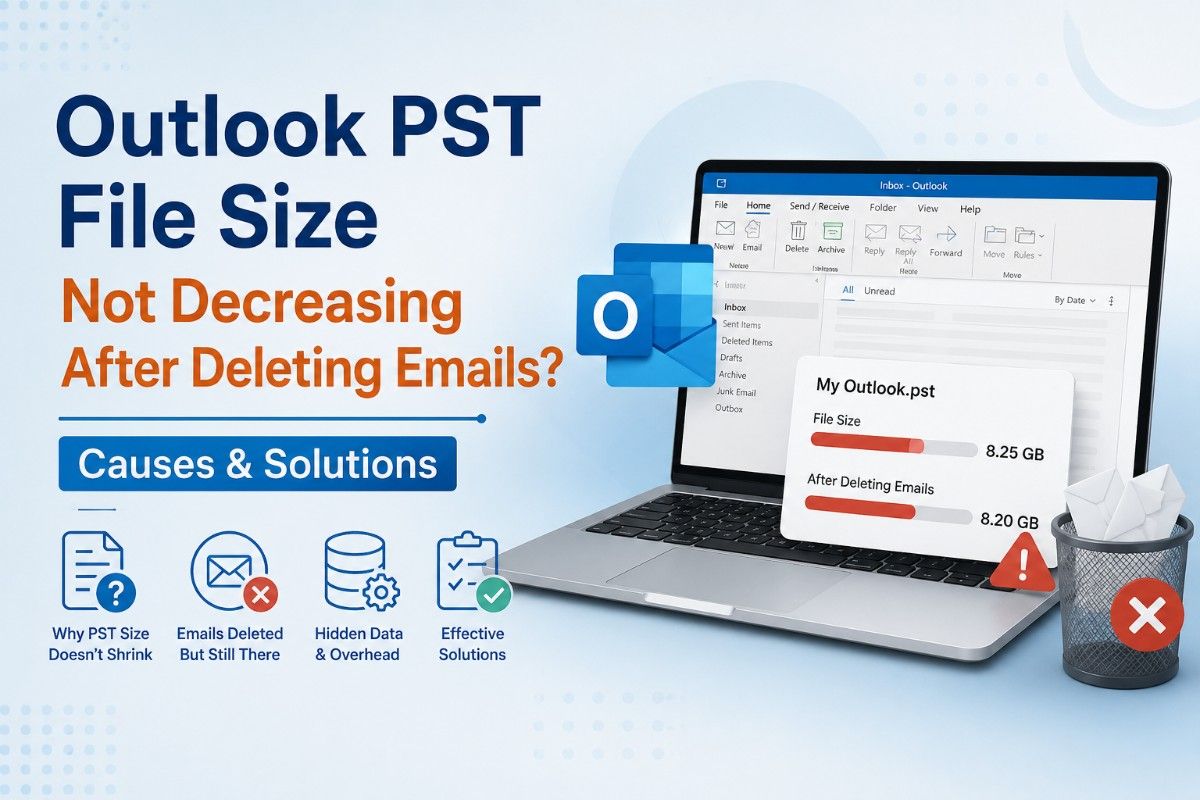
Outlook PST File Size Not Decreasing After Deleting Emails? Causes & Solutions
-

- July 25th, 2026
- 23 views

FREE SEO Topical Map Generator: Find Your Next Content Ideas
Introduction
If you have removed thousands of emails from Microsoft Outlook but your PST file size has not changed, you are not alone. Many Outlook users believe that removing emails or emptying the Deleted Items folder will automatically lower the size of their PST file. But this is not how Outlook keeps data.
Users who manage big mailboxes frequently report that the size of their Outlook PST files does not decrease when things are erased. Even after eliminating superfluous emails or shifting old data to archives, the PST file frequently uses the same amount of disk space.
In this post we'll go over why this happens, the consequences of a large PST file, manual techniques and an easier option.
Why Doesn't Outlook PST File Size Decrease After Deleted Items?
When you delete an email in Outlook the data is not immediately erased from the PST file structure. Instead Outlook labels the slot as open for future use. Until compacted the PST file on your hard drive remains almost the same size.
This solution improves Outlook efficiency by avoiding the continual enlargement of the data file when items are erased.
As a result users regularly report that the Outlook PST file size does not decrease when items are erased even after eliminating several emails.
Common Reasons for This Problem
Several things influence this habit.
1. PST files do not shrink automatically.
Deleting emails merely frees up internal storage. MS Outlook does not automatically recycle storage space.
2. Deleted Items Are Still Recoverable.
Until folders are properly cleared, erased content may remain in the PST structure.
3. Internal White Space.
Large PST files build up wasted internal space over time. Outlook reserves this space rather than lowering the file size.
4. Archival Operations
Archiving deletes emails logically but does not optimize the underlying PST file.
5. Years of Continuous Usage
Older Outlook profiles, which have been used for many years, frequently contain fragmented PST files with a lot of free space.
Problems Caused by Large PST Files
Keeping huge PST files can cause several concerns, including:
- Slow Outlook startup.
- Delayed email searches.
- Higher likelihood of PST corruption.
- Longer backup times.
- Increased risks of synchronization difficulties.
Even if Outlook continues to function properly, a big PST might become challenging to handle over time.
Manual Method for Reducing PST File Size
Microsoft Outlook has a built-in Compact solution that allows you to save space.
Step 1: Empty the Deleted Items
- Open Outlook.
- Right-click Deleted Items.
- Choose Empty Folder.
Step 2: Remove Unwanted Emails Permanently
Remove unnecessary:
- Large attachments.
- Junk emails.
- Old calendar pieces.
- Duplicate emails.
Step 3: Compact the PST File
Take these steps:
- Open Outlook.
- Click File.
- Choose Account Settings.
- Select Account Settings again.
- Select the Data Files tab.
- Select the PST file.
- Click Settings.
- Select Compact Now.
Outlook will start reclaiming wasted space.
Limitations of Compacting
Although compacting works, it does have some restrictions.
- The reduction may be minor.
- Compacting large PST files can take several hours.
- Recovery of space can be minimal at times.
- Outlook must stay open throughout the process.
- Corrupted PST files may not compact properly.
- The reorganization of mailbox data is inefficient.
For users with PST files larger than several gigabytes, compacting alone may not produce the desired results.
A Better Approach to Managing Oversized PST Files
Many IT administrators propose breaking huge PST files into smaller, more manageable sections rather than just compacting them.
Smaller PST files have various advantages.
- Enhanced Outlook performance.
- Easier backups.
- Reduced corruption risk.
- Improved mailbox organization.
Instead of waiting for Outlook to reclaim unnecessary space, dividing big PST files addresses the root cause of enormous Outlook data files.
Professional Solution for Large PST Files
When Outlook compacting fails to reduce the file size sufficiently many experts use Softaken Split PST Pro to divide large PST files into many smaller PST files while preserving mailbox data.
Tips to Keep PST Files from Growing Too Large
To avoid encountering the same issue again try these best practices:
- Regularly archive older emails.
- Clear the Deleted Items folder regularly.
- Eliminate big attachments if feasible.
- Occasionally use compact PST files.
- Generate yearly archive PST files.
Final Thoughts
When things are erased the Outlook PST file size does not decrease which can be aggravating especially after clearing your mailbox. The same is true for Outlook PST file size not dropping after archiving in which Outlook appears to free space theoretically but not practically.
While Outlook built-in Compact tool can help remove some unnecessary space, its effectiveness is generally limited, especially for older or very big PST files. For users who frequently manage big Outlook archives, dividing multiple PST files into smaller, organized files is a more long-term option. It enhances Outlook performance, simplifies backups, lowers the risk of corruption and makes mailbox maintenance easier than relying on compaction.