Best Ways to Transfer JSON File to Google Sheets Instantly
-

- June 26th, 2026
- 21 views

FREE SEO Topical Map Generator: Find Your Next Content Ideas
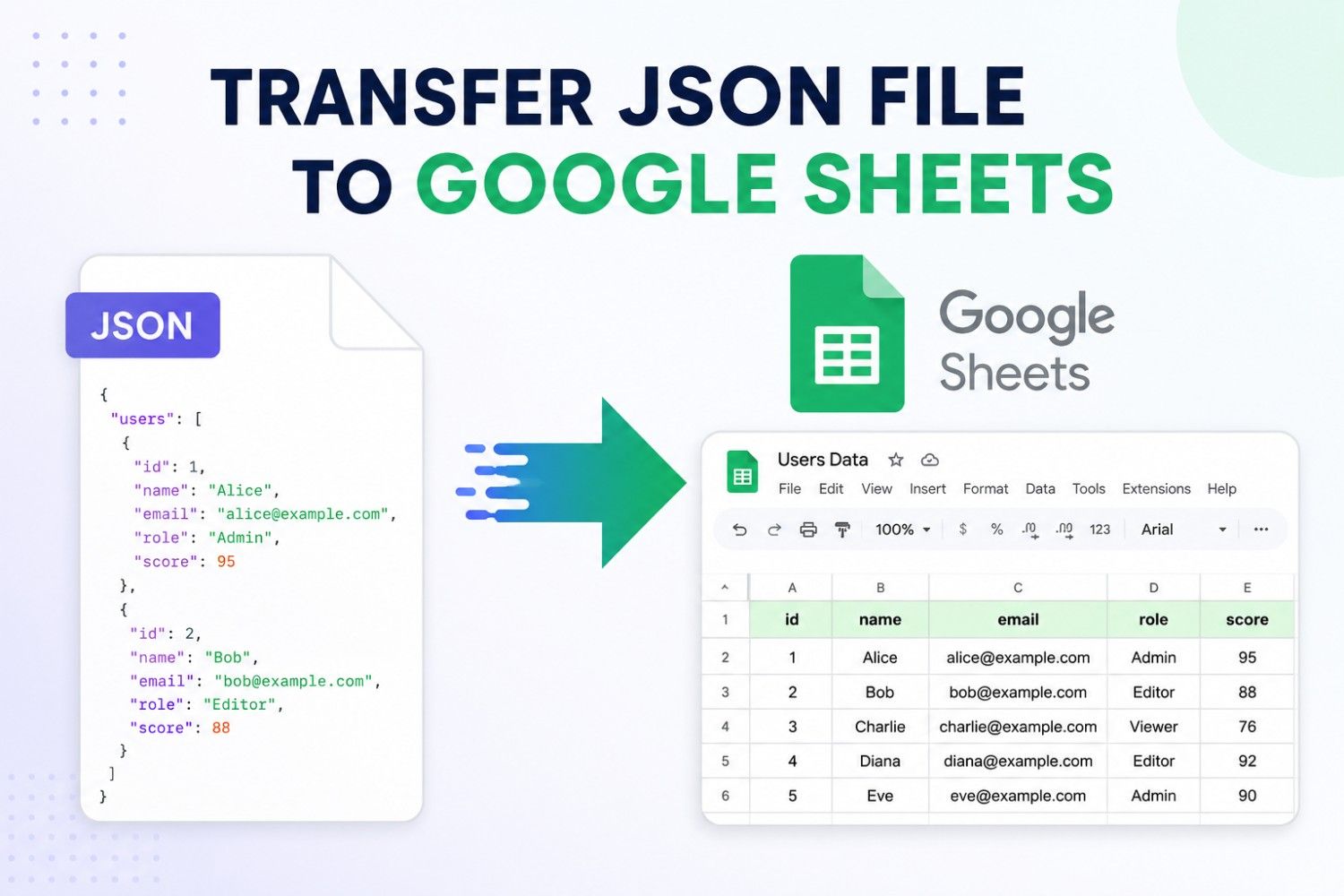
Managing and reviewing data has become important for businesses and individuals. Many users store their data in JSON, which is a nested structure. This makes the data difficult to read and access on other platforms. The main reason that users start switching to Google Sheets is to make their data more visual, readable, and easy to access. However, a major challenge arises that Google Sheets does not accept a JSON file directly and needs to convert JSON to CSV format for easy transfer.
In this guide, we’ll explore the best methods to efficiently transfer JSON file to Google Sheets and make your data more accessible and useful. Transferring your data to Google Sheets allows you to use the powerful features that include tables, charts, and editing to represent your data in a well-organized manner. Now, let’s start.
Why Need to Transfer Data from JSON to Google Sheets?
If you are working with raw JSON data, this can create hurdles, especially when you need to analyze or share information with other users. Transferring a JSON file to Google Sheets can transform your data into a more structured and simple format. Here are some reasons:
- JSON files are in a nested or complex format and are difficult to interpret at a glance. Google Sheets organizes the data into a tabular format that contains rows and columns, which makes the data easy to read, share, and filter.
- Google Sheets allows multiple users to work on the same file simultaneously and allows you to share your data with anyone without facing challenges. This makes the collaboration effortless for users.
- This platform can be connected to several apps, APIs, and automated tools that allow seamless data updates, reporting, and streamlining the workflow. It integrates with other apps securely.
- Once you transfer JSON data to Google Sheets, you can apply formulas, create tables, and format that data according to your choice, which helps users perform analysis and generate charts for valuable insights quickly.
Overall, these are the main reasons to continue the transfer process and format your JSON data accurately. Now, move to the section where we will discover the best methods. Let’s begin with the discussion.
How to Transfer JSON File to Google Sheets? Overview
There are multiple ways to transfer data to Google Sheets, which only depend on the size of your JSON file, frequency of updates, and technical comfort. Here, in this section, we’ll explain the two main approaches that smoothly transfer your JSON data into Google Sheets.
#1 Manual Approach to Transfer Data from JSON to Google Sheets
In this method, a JSON file can be transferred to Google Sheets only by converting the JSON data into CSV format. Here are some steps:
Step1:
- Open your JSON file in Notepad.
- Tap on the file option > Save As > select All Files options.
- Now, add a .csv extension in Notepad to save the JSON file.
Step2:
- Open Google Sheets on your system.
- Tap on the File section > Import > Upload the CSV file.
- Finally, your JSON file will be transferred to Google Sheets.
PROS:
- This method can be used to handle a small JSON file.
- It is a free and quick method.
CONS:
- This method can be error-prone for transferring a sensitive JSON file to Google Sheets.
- This can be time-consuming because it contains multiple steps that create confusion.
- It requires adding an extension, as Notepad only has the .txt extension
#2 Transfer JSON File to Google Sheets — Automated Approach
For large datasets, automated methods are the most efficient. One of the best tools available for this purpose is SysTools JSON Converter Tool, which allows you to quickly transfer JSON data to Google Sheets or CSV without manual transfer. This is an offline tool that provides advanced features and makes the transfer seamless. Below are the steps mentioned:
- Launch and install the software on your system.
- Browse and upload the JSON file.
- Choose the CSV format and hit the Export icon.
- Lastly, view the Report and see the converted CSV file.
- Now, import the CSV file directly to Google Sheets.
PROS:
- This method easily converts the JSON data into CSV format, which can be directly transferred to Google Sheets.
- This offline tool can handle JSON files in bulk as it supports batch conversion.
- It saves both time and effort and transfers the data in seconds.
- No need for a stable internet connection.
Best Practice While Transferring JSON Data to Google Sheets
- Always ensure that your JSON file is formatted properly.
- Keep a backup copy of your JSON data before transferring to Google Sheets.
- Verify that all fields have been imported correctly.
- Try to convert nested objects into a tabular format for easier use.
Time to Wrap Up
This comprehensive guide has discovered the 2 secure ways to transfer JSON file to Google Sheets effortlessly. Both the manual and automated methods are best at their own, but the manual approach comes with some drawbacks that can create difficulties. We recommend that you choose the advanced solution for fast and reliable transfer of data from JSON to Google Sheets. Approach the method that is most appropriate according to your needs and preferences.