Best Methods to Import MBOX to Office 365: 2026 Guide
-

- July 02nd, 2026
- 26 views

FREE SEO Topical Map Generator: Find Your Next Content Ideas
Email migration has become a routine task for individuals and organizations that switch between platforms for better collaboration, storage, and security. One of the most common requests among IT administrators and everyday users alike is how to Import MBOX to Office 365 without losing data integrity or spending days on manual transfers. Since MBOX is a widely used file format for storing email data from clients like Thunderbird, Apple Mail, and Eudora, many people find themselves needing a reliable way to move this data into Microsoft's cloud-based ecosystem. This 2026 guide walks through everything you need to know, from understanding the basics to choosing the right method for your situation.
What Does It Mean to Import MBOX to Office 365?
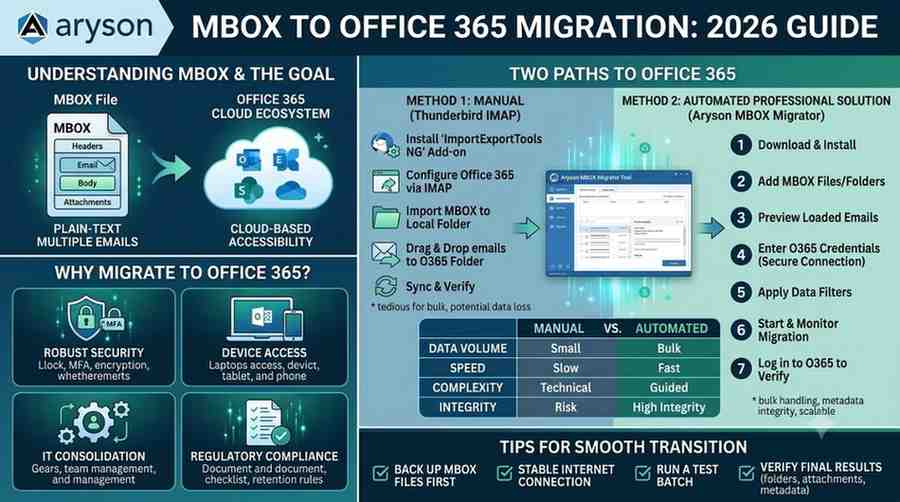
An MBOX file is essentially a single, plain-text file that stores multiple email messages together, including their headers, body content, and attachments. When someone decides to move this data into Microsoft's cloud environment, they are essentially converting locally stored files into a format that Microsoft's servers can recognize and organize within a mailbox. This process typically involves either manual configuration through desktop email clients or the use of specialized software designed to automate the conversion and upload.
The end goal is simple: take emails sitting in an outdated or offline format and make them accessible through Outlook, Exchange Online, or any other Office 365-connected application. Whether you're an individual consolidating old archives or a business migrating an entire team's mailbox history, the underlying objective remains the same — a clean, complete, and accurate transfer of email data.
Why Do Users Need to Import MBOX to Office 365?
There are several practical reasons why individuals and businesses look to move their email archives into Microsoft's ecosystem. First, Office 365 offers robust security features, including encryption, multi-factor authentication, and compliance tools that many older email clients simply don't provide. Second, cloud-based storage means users can access their mailboxes from any device, anywhere, without worrying about local file corruption or hardware failure.
Businesses transitioning from open-source or legacy email clients often need to consolidate scattered MBOX files from multiple employees into a centralized Office 365 tenant. This makes collaboration easier and simplifies IT management. Additionally, organizations undergoing mergers or restructuring frequently need to migrate historical email data to maintain continuity and meet regulatory retention requirements. For all these scenarios, finding an efficient way to Import MBOX to Office 365 becomes a priority rather than an afterthought.
Beyond business needs, everyday users switching from Thunderbird or Apple Mail to Outlook also want their years of correspondence, contacts, and folder structures preserved. Losing this data isn't an option for most, which is why choosing a dependable migration approach matters so much.
Method 1: Manual Way to Import MBOX to Office 365 Using Thunderbird
Mozilla Thunderbird is one of the most common sources of MBOX files, and it also offers a way to manually move data toward Office 365, although this route requires patience and technical familiarity.
Steps for the manual method:
Open Thunderbird and install the "ImportExportTools NG" add-on, which allows you to manage MBOX files more effectively within the client.
Set up your Office 365 account within Thunderbird using IMAP settings, entering the correct server address, port number, and authentication details.
Locate the MBOX files you want to migrate and import them into a local folder within Thunderbird using the add-on's import feature.
Once the emails appear in Thunderbird's local folders, manually drag and drop them into the corresponding IMAP folder linked to your Office 365 account.
Wait for Thunderbird to sync the transferred emails with the Office 365 server, which may take a considerable amount of time depending on the volume of data.
Verify that all emails, attachments, and folder structures have transferred correctly by logging into Outlook or the Office 365 web portal.
While this manual process works for smaller data sets, it becomes tedious and error-prone when dealing with large volumes of email or multiple accounts. Formatting issues, missing attachments, and incomplete folder hierarchies are common complaints among users who attempt this route without technical assistance.
Method 2: Automatic Way to Import MBOX to Office 365 Using Thunderbird
For users who want a faster and more reliable alternative without relying entirely on manual drag-and-drop actions, an automatic approach using Thunderbird in combination with IMAP synchronization tools offers a smoother experience. This method still uses Thunderbird as the intermediary client but reduces the manual handling involved.
Steps for the semi-automatic method:
Configure your Office 365 account in Thunderbird using IMAP, ensuring auto-sync settings are enabled.
Use Thunderbird's built-in "Copy To" or bulk-selection features combined with scripts or automation add-ons that can batch-transfer messages from local MBOX folders directly into the connected IMAP account.
Allow the synchronization process to run in the background, letting Thunderbird handle the bulk of the folder mapping and message transfer automatically.
Monitor the sync status through Thunderbird's activity manager to confirm successful delivery of all messages to Office 365.
Cross-check mailbox folders in Outlook to ensure metadata, timestamps, and read/unread status remain intact.
This semi-automated approach reduces manual error but still depends on stable internet connectivity and Thunderbird's syncing capabilities, which can occasionally lag with very large mailboxes. It's a good middle-ground option for users who are comfortable with basic technical configuration but want less manual dragging and dropping.
A Professional Solution: Aryson MBOX Migrator Tool
For users and businesses seeking a more dependable, scalable, and error-free approach, dedicated software solutions are often the better choice. Among the tools available in 2026, the Aryson MBOX Migrator Tool stands out as a professional-grade utility built specifically to migrate MBOX to Office 365 efficiently. Unlike manual methods, this tool is designed to handle bulk email data, preserve folder hierarchies, and maintain metadata integrity throughout the transfer process.
It supports MBOX files exported from various clients, including Thunderbird, Apple Mail, Eudora, and PocoMail, making it a versatile option for users regardless of their original email source. Its interface allows users to upload MBOX to Office 365 directly, without needing to configure IMAP settings manually or worry about syncing delays. The tool also includes filtering options, allowing users to selectively convert MBOX to Office 365 based on date ranges or specific folders, which is particularly useful for businesses with strict data retention policies.
Software solutions like this one reduce the technical burden significantly, offering a straightforward, guided process that minimizes the risk of data loss or corruption often associated with manual transfers.
How to Import MBOX to Office 365 Using a Dedicated Tool
Using a specialized tool generally follows a simpler, more guided workflow compared to manual configuration. Below is a typical process for using such software:
1. Download and install the migration software on a Windows system.
2. Add the MBOX files you wish to migrate by browsing to their storage location or selecting an entire folder.
Preview the loaded emails within the software interface to confirm accuracy before proceeding.
Enter your Office 365 credentials to establish a secure connection between the tool and your cloud mailbox.
Apply any necessary filters, such as date range or specific folder selection, if you only need to migrate MBOX to Office 365 partially.
Start the migration process and monitor the real-time progress bar until completion.
Once finished, log into your Office 365 account to verify that all emails, attachments, and folder structures have transferred successfully.
This method is particularly beneficial for businesses handling large-scale migrations, as it significantly reduces downtime and manual oversight compared to Thunderbird-based approaches.
Manual vs. Automated: Which Method Should You Choose?
Choosing between manual Thunderbird methods and dedicated software ultimately depends on the volume of data, technical comfort level, and time constraints. Manual methods work reasonably well for individuals with small mailboxes and plenty of patience, but they carry higher risks of incomplete transfers and formatting issues. Automated tools, on the other hand, are built to handle bulk operations with minimal supervision, making them ideal for businesses or anyone managing multiple accounts.
If your priority is accuracy, speed, and minimal manual intervention, using professional software to convert MBOX to Office 365 is generally the safer choice. However, if you're dealing with only a handful of emails and don't mind a hands-on approach, the manual Thunderbird method remains a viable, cost-free option.
Tips for a Smooth MBOX to Office 365 Transition
Regardless of which method you choose, a few best practices can make the process smoother. Always back up your original MBOX files before starting any migration, ensuring you have a fallback in case something goes wrong. Check your internet connection stability, especially for larger data transfers, as interruptions can lead to incomplete uploads. It's also wise to run a small test batch first, migrating a handful of emails before committing to the entire dataset, so you can catch potential issues early.
For businesses, communicating the migration timeline with employees ahead of time reduces confusion and minimizes disruption to daily operations. Lastly, always verify the final results by spot-checking folders, attachments, and metadata after the migration completes, regardless of the method used.
Conclusion
Deciding how to move your email archives into Microsoft's ecosystem doesn't have to be overwhelming once you understand the available options. Manual methods through Thunderbird offer a free, if time-consuming, path for smaller migrations, while automated Thunderbird workflows reduce some manual effort for moderately sized transfers. For larger-scale or business-critical migrations, professional tools like the Aryson MBOX Migrator Tool provide a faster, more reliable way to handle the process without the common pitfalls of manual transfers.
Whether you're an individual consolidating personal archives or an IT administrator managing an entire organization's email history, choosing the right approach ensures your data remains intact and accessible. With the methods outlined in this 2026 guide, anyone looking to Import MBOX to Office 365 on Windows now has a clear roadmap to follow, whether they prefer a hands-on manual process or a streamlined, software-assisted solution.