How to Extend ERPNext with AI: Connecting OpenAI, LLMs, and Custom Python Scripts via Frappe
-

- July 08th, 2026
- 27 views

FREE SEO Topical Map Generator: Find Your Next Content Ideas
ERPNext runs on the Frappe framework, and that framework is built for exactly this kind of extension. You do not need to fork the core codebase or wait for a native AI module to show up. You need a clear integration path, and that path runs through Frappe's Python backend, its REST API, and a handful of well-placed hooks.
Why Extend ERPNext with AI at All?
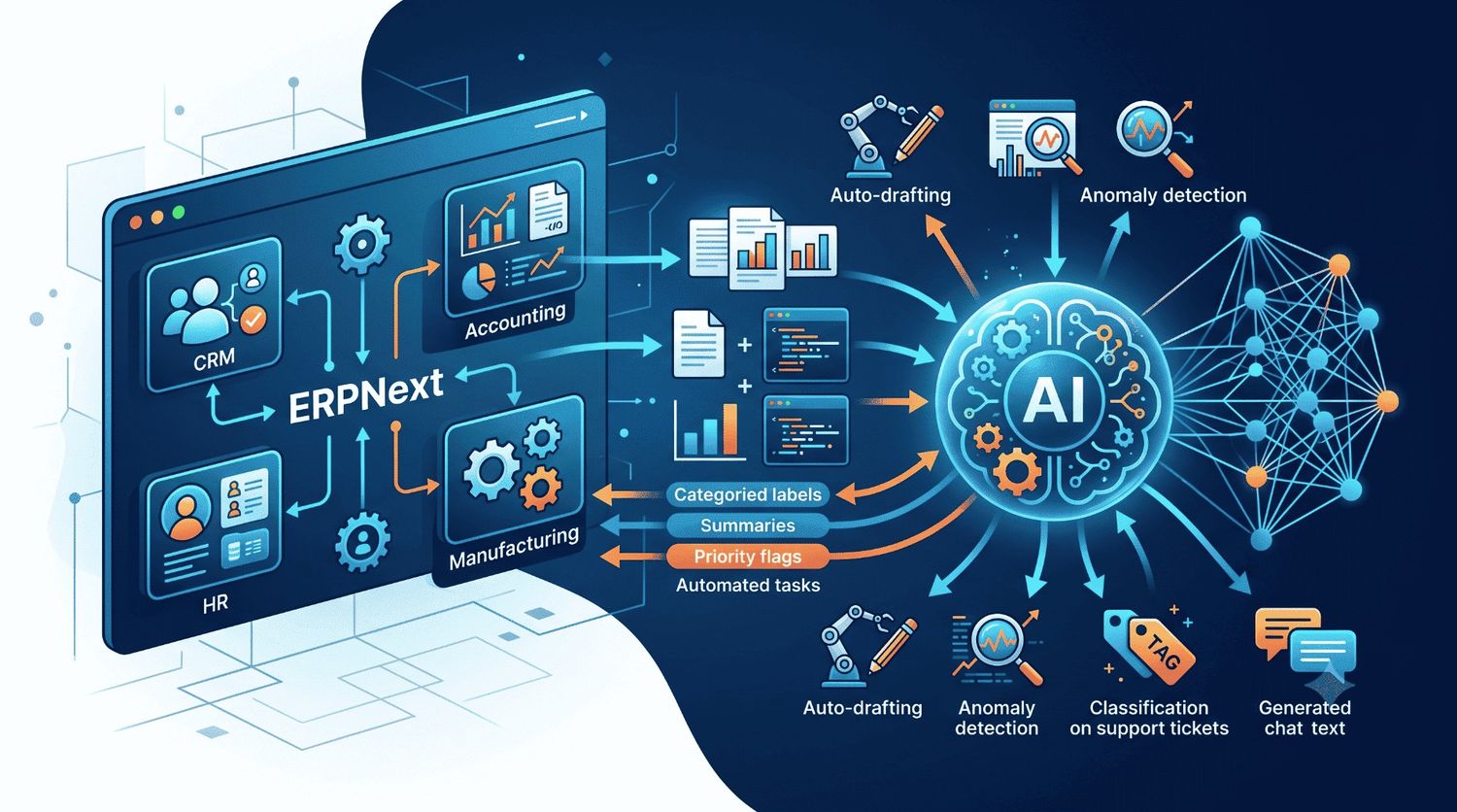
Most ERP tasks are repetitive by nature: classifying support tickets, drafting follow-up emails, summarizing long sales notes, flagging unusual invoice entries. These are pattern-recognition problems, and large language models are good at exactly that. Adding AI to ERPNext means your team spends less time on manual data entry and more time on decisions that actually need a human.
The businesses seeing the fastest returns are not rebuilding ERPNext from scratch. They are layering AI on top of an existing, well-configured system. If your instance still needs foundational work, it helps to understand the cost and pricing structure of ERPNext implementation before adding custom AI layers, since a stable base makes every integration afterward faster and cheaper.
Connecting OpenAI to ERPNext
The most direct way to bring OpenAI into ERPNext is through a custom Frappe app. Frappe apps sit alongside ERPNext and can call external APIs without touching core files, which keeps your setup upgrade-safe.
A basic integration looks like this:
Create a custom app with bench new-app
Store your OpenAI API key securely using Frappe's encrypted Site Config or a Frappe key management doctype
Write a Python function that interacts with the OpenAI API using either the requests library or the official openai Python SDK.
Trigger that function through a Server Script, a scheduled job, or a document event hook
For example, a Server Script attached to the Sales Invoice doctype can call OpenAI on submit, generate a plain-language summary of the transaction, and write it back into a custom field. No manual copy-pasting between systems.
Using Custom Python Scripts and Frappe Hooks
Frappe's hook system is what makes deep AI integration realistic instead of theoretical. Hooks let you run custom Python code at specific points in a document's lifecycle, such as before save, after submit, or on cancel.
Common patterns include:
Document classification: An LLM reads an incoming lead or ticket and assigns a category or priority automatically
Data validation: A script flags entries that look inconsistent with historical patterns before they are saved
Auto-drafting: AI generates a first-pass email, quotation note, or internal comment that a human then reviews
Anomaly detection: Python scripts combined with a model flag unusual stock movements or pricing errors
None of this requires touching ERPNext's core source code. Everything lives in your custom app, which is exactly how Frappe intends extensions to work.
Working with LLMs Beyond OpenAI
OpenAI is one option, not the only one. Frappe's Python backend is model-agnostic, meaning you can call Anthropic's Claude, open-source models hosted locally, or any provider with a REST endpoint. The integration pattern stays the same: authenticate, send a structured prompt, parse the response, write it back into a doctype field or create a new record.
For teams handling sensitive financial or HR data, self-hosted open-source LLMs are worth evaluating, since they keep data inside your infrastructure instead of sending it to a third-party API.
Automated Testing and Data Generation with AI
AI is not limited to customer-facing features inside ERPNext. It also has a growing role in automated testing and synthetic data generation, an approach that avoids the fragility of traditional RPA-based test scripts. Instead of recording brittle click-by-click flows, AI can generate realistic test data, simulate document workflows, and validate outputs against expected business logic, which is particularly useful for QA teams managing complex Frappe customizations.
Using ERPNext's REST API for External AI Pipelines
Not every AI workflow needs to live inside Frappe itself. ERPNext exposes a full REST API, which means you can also build AI logic externally, in a separate service, and have it read from and write to ERPNext over HTTP.
This approach works well when:
You are running heavier AI workloads that should not compete with your ERPNext server's resources
You want to orchestrate multiple tools together, such as an LLM, a vector database, and a scheduling service like Trigger.dev
Your AI logic needs to call other third-party APIs alongside ERPNext, and keeping that outside the Frappe app simplifies dependency management
A typical pattern looks like this: an external Python or Node service authenticates with ERPNext using API key and secret, pulls the relevant doctype records through the REST endpoint, sends the data to an LLM for processing, and pushes the result back through a POST or PUT request. Tools built around this pattern, including some open-source connectors designed specifically for Frappe and ERPNext, can shorten the setup time considerably since the authentication and endpoint mapping is already handled.
Security and Data Governance Considerations
Sending ERP data to any external AI service raises real questions, and skipping this step is one of the most common mistakes teams make when moving fast.
Before connecting OpenAI or any LLM provider to a live ERPNext instance, it is worth working through a few checks:
Field-level filtering: Only send the fields an AI task actually needs. A summarization script should have access only to the minimum data required and does not need the customer's full payment history.
API key storage: Keep keys in Frappe's encrypted site config, never hardcoded in a Server Script or committed to a custom app's repository.
Retention policies: Confirm what the AI provider does with submitted data and for how long, especially for financial, HR, or customer records.
Audit logging: Log every AI-triggered write-back to a doctype so you can trace exactly what was auto-generated versus manually entered.
Rate limiting: Batch or throttle calls, particularly on high-volume doctypes like Sales Invoice or Stock Entry, to avoid runaway API costs.
None of these require complex tooling. Most can be handled with a few extra lines in the same Server Script or custom app that runs the AI call itself.
Real-World Use Cases Worth Building First
Some AI integrations deliver value almost immediately because they touch high-volume, repetitive work. A few worth prioritizing:
Support ticket triage: An LLM reads incoming HD Ticket records, assigns category and priority, and routes them to the right team without manual sorting.
Sales note summarization: Long call notes or meeting logs attached to a Lead or Opportunity get condensed into a two-line summary visible on the list view.
Purchase order anomaly checks: A Python script compares new Purchase Order line items against historical pricing and flags entries that fall outside expected ranges.
HR document parsing: Resumes or onboarding documents uploaded as attachments get parsed by an LLM, with key fields extracted directly into the relevant doctype.
Automated QA scripts: As referenced in open-source Frappe testing projects, AI-generated synthetic data can populate a staging instance for realistic test coverage, without relying on brittle recorded RPA scripts.
Where to Start
If you are new to this, start small. Pick one repetitive task, such as summarizing support tickets or auto-tagging leads, and build a single Server Script integration before expanding further. A well-scoped Frappe implementation makes this much easier to execute cleanly. Reviewing how ERPNext implementation works for CRM and ERP workflows is a useful next step if you are still finalizing your core setup before layering AI on top.