How Small Teams Can Build a Smarter Email Workflow Without Adding More Software
-

- July 04th, 2026
- 36 views

FREE SEO Topical Map Generator: Find Your Next Content Ideas
Small teams often face an unusual productivity problem.
They have fewer people, but each person handles more types of work.
A founder may write partnership emails in the morning, reply to customers in the afternoon, and test a signup flow before the end of the day. A freelancer may manage sales, project communication, invoicing, and customer support without a dedicated operations team. A small agency may need to create professional outreach while also checking whether automated emails are being delivered correctly.
In these situations, email becomes more than a communication channel. It becomes part of sales, support, hiring, testing, and daily operations.
The usual response is to add more software.
However, another dashboard is not always the answer. Small teams can often improve their workflow by using focused tools for the specific moments where email becomes slow or repetitive.
Where Email Friction Usually Appears
The inbox itself is rarely the only problem.
Most email services already handle sending, receiving, searching, folders, and spam filtering reasonably well. The friction often appears before a message is sent or around the systems connected to email.
Common examples include:
Turning a rough idea into a professional message
Choosing a useful subject line
Replying without sounding too brief or impersonal
Testing signup and verification emails
Protecting a primary address during low-risk registrations
Keeping team signatures consistent
Rewriting similar follow-up messages repeatedly
Each task may take only a few minutes. The total cost becomes more noticeable when the same work is repeated every day.
A smarter workflow begins by separating these tasks instead of trying to solve everything inside one large application.
Use AI for Structure, Not Automatic Sending
One of the most useful applications of AI in email is creating a structured first draft.
The user usually already knows what needs to happen. The message may need to request an update, introduce a service, confirm a meeting, answer a complaint, or remind someone about a deadline.
The difficulty is expressing that goal clearly.
A good email must often balance several requirements:
It should be concise but not incomplete.
It should be confident but not aggressive.
It should be friendly but still professional.
It should provide context without becoming too long.
It should make the next step obvious.
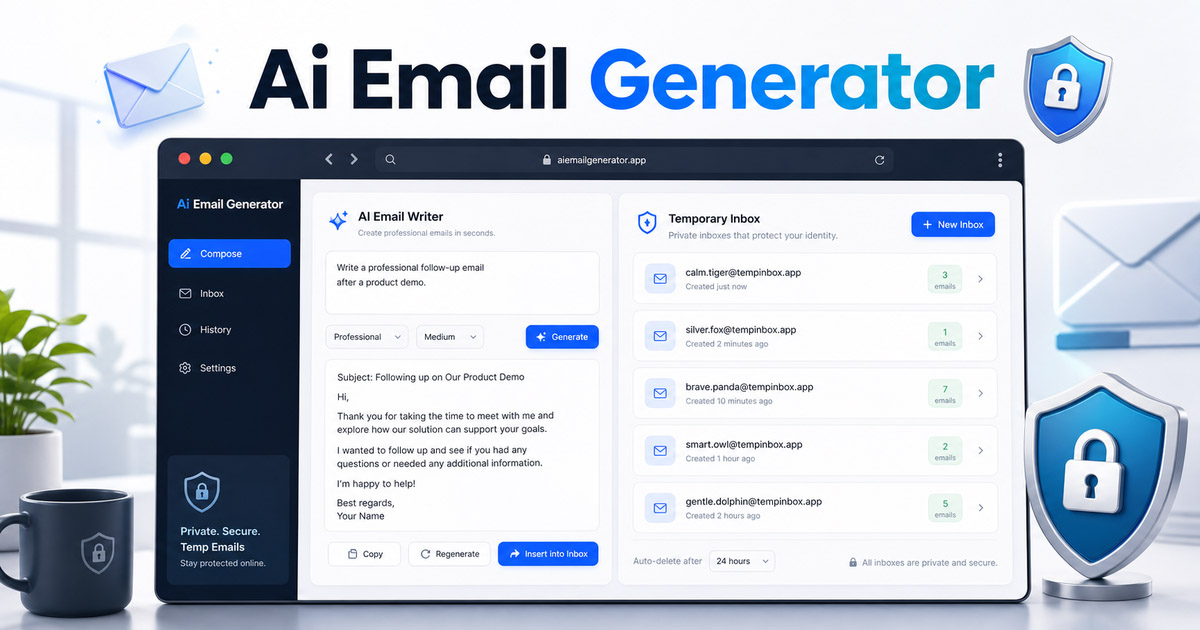
An AI email writing tool can turn a short description into a suggested subject line and editable message.
The user can provide details such as:
The recipient
The reason for writing
The preferred tone
The desired length
The action the recipient should take
Any deadline or previous discussion
Whether the message is new or a reply
The generated result should remain a draft.
AI can organize information and improve phrasing, but it cannot independently confirm every fact or understand every relationship. The sender should still review names, dates, prices, commitments, attachments, and sensitive details.
A Better Drafting Process
Small teams can use a simple five-step process:
Write the communication goal in one sentence.
Add the minimum context the recipient needs.
Generate a structured draft.
Remove generic or unnecessary wording.
Verify the facts and personalize the final message.
This process preserves human control while reducing the time required to move past the blank page.
Create Reusable Context, Not Just Reusable Templates
Traditional email templates are useful, but they can become too rigid.
A template may work for one customer and sound inappropriate for another. It may contain outdated details, or team members may copy it without adapting the tone.
A better approach is to save reusable context instead of saving only complete messages.
For example, a small agency could define:
Its preferred professional tone
A short company description
Standard payment terms
The normal project handoff process
Common meeting availability
The preferred closing style
A team member can then combine that information with the specific situation.
This produces messages that remain consistent without looking identical.
The result is more flexible than a fixed template and faster than writing every email from the beginning.
Separate Testing Email From Business Email
Small teams that operate websites or software products frequently need to test email workflows.
Examples include:
Account verification
Password reset notifications
Contact form delivery
Trial confirmation
Newsletter subscriptions
Purchase receipts
Team invitations
Using a primary work address for every test can create a cluttered inbox. Creating multiple permanent mailboxes is also unnecessary for short-lived tests.
A temporary email inbox can be useful for checking whether basic signup and delivery flows are working.
A developer or product manager can:
Create a temporary address.
Complete the registration or form.
Confirm that the message arrives.
Open the verification link.
Record any delivery or formatting problems.
Finish the test without adding another permanent account.
This can make basic quality-assurance work faster.
Know When Not to Use Temporary Email
Temporary inboxes should be limited to short-term and low-risk tasks.
They are not appropriate for:
Banking or financial services
Paid business accounts
Important customer records
Cloud storage
Long-term subscriptions
Password recovery
Accounts that must remain accessible
A useful rule is straightforward:
Use temporary email only when losing future access to the address will not create a problem.
For important systems, teams should always use an address they control permanently.
Treat Email Signatures as Shared Business Information
Email signatures are often created once and forgotten.
Over time, phone numbers change, job titles become outdated, websites move, and social links stop working. Different team members may also use completely different formats.
This creates an inconsistent professional identity.
A signature should make it easy for the recipient to understand:
Who sent the email
What role that person has
Which company they represent
How to contact them
Where to find reliable additional information
A professional email signature builder can help users create and preview signatures without manually assembling email HTML.
Small teams should define a shared signature standard containing only the most useful information.
A practical signature may include:
Full name
Role
Company
Website
One phone number
One or two relevant profile links
Logos, banners, promotional messages, and disclaimers should be used carefully. A signature should support the message, not compete with it.
Review Signatures Regularly
A simple quarterly review can prevent outdated information from remaining in hundreds of outgoing messages.
Check:
Job titles
Contact numbers
Website links
Calendar links
Company logos
Legal disclaimers
Social profile URLs
This is a small maintenance task with a visible effect on professional communication.
Match the Tool to the Risk of the Task
Not every email task deserves the same workflow.
A useful way to choose tools is to classify the task by risk.
Low-Risk Tasks
Examples:
Drafting a routine follow-up
Testing a signup email
Creating a temporary test account
Generating a basic subject line
These tasks can use faster and more automated workflows.
Medium-Risk Tasks
Examples:
Sales outreach
Customer support replies
Project updates
Interview communication
Payment reminders
AI assistance can help, but careful review is necessary.
High-Risk Tasks
Examples:
Legal communication
Financial commitments
Contract changes
Sensitive customer disputes
Medical or confidential information
Security and account-recovery messages
These messages should receive direct human attention. AI may help with organization, but it should not make decisions or introduce unverified statements.
This risk-based approach prevents teams from applying the same level of automation to every situation.
Build a Simple Team Email Checklist
A shared checklist can improve consistency without creating a complicated approval process.
Before sending an important email, confirm the following:
Purpose
Is the reason for the message clear?
Is the requested action easy to identify?
Does the subject line match the content?
Accuracy
Are names and dates correct?
Are prices, deadlines, and commitments accurate?
Is the correct document attached?
Tone
Does the wording fit the recipient?
Is any sentence unnecessarily harsh or vague?
Does the email sound like a person rather than a generic template?
Privacy
Does the message contain information the recipient does not need?
Is the correct sender account being used?
Is a temporary address appropriate for this task?
Presentation
Is the signature current?
Do the links work?
Is the message easy to read on a mobile screen?
The checklist does not need to be long. Its purpose is to catch avoidable mistakes before they create more email later.
Avoid Turning a Lightweight Workflow Into Another Platform
Once a team starts improving a process, there is a temptation to add dashboards, permissions, analytics, automation rules, integrations, and approval layers.
Some teams need those features. Many small teams do not.
A useful email workflow can remain simple:
Choose the correct tool.
Provide the necessary information.
Generate or receive the result.
Review it.
Continue working.
The goal is not to move every email action into a new system. The goal is to remove the repetitive work surrounding the existing inbox.
Final Thoughts
Small teams do not need to automate every part of communication.
They need to identify where time is being lost and apply the smallest useful solution.
AI-assisted drafting can reduce writing friction. Temporary inboxes can simplify safe testing and low-risk registration. Consistent signatures can strengthen professional identity.
Used together, these tools create a practical workflow without replacing the email services a team already trusts.
The most effective approach keeps people responsible for accuracy, tone, privacy, and final decisions while allowing focused tools to handle repetitive structure and setup.
FAQ:
Can AI write every business email automatically?
AI can create useful drafts, but important messages should always be reviewed. The sender remains responsible for facts, tone, commitments, and confidential information.
Is temporary email suitable for business accounts?
It is suitable for short-term testing and low-risk verification. It should not be used for important accounts, payments, password recovery, or systems that require permanent access.
What should a professional email signature contain?
A practical signature usually includes a name, role, company, website, and one primary contact method. Additional links should only be included when they are genuinely useful.
Do small teams need a complete email automation platform?
Not always. Many teams can improve productivity with focused tools for drafting, testing, and signatures while continuing to use their existing inbox.
Suggested Tags:
AI Email Writing
Email Productivity
Small Business Tools
Temporary Email
Business Communication
Featured Image Suggestion:
A clean 1200 × 675 px image showing a small team workflow with three connected elements: an AI-assisted email draft, a temporary test inbox, and a professional email signature.
Image Alt Text:
Smart email workflow for small teams using AI drafting, temporary inboxes, and professional signatures.